


Many modern portable music players are not limited to playing files from a microSD card.
A capable digital audio player can also work as an external USB DAC and headphone amplifier for a laptop, phone, or tablet.
In that role, the computer or mobile device sends digital audio over USB, while the player handles digital-to-analog conversion and drives your headphones from its own audio circuitry. This guide explains how to set up that connection correctly, choose the right output and gain setting, avoid common compatibility problems, and keep the portable player working reliably as part of a desktop or mobile listening setup.
What USB DAC mode does on a portable music player
A USB DAC is a device that receives digital audio from another source over USB and converts it into an analog signal.
In a portable music player, the DAC section performs the conversion, while the built-in headphone amplifier provides the power needed by wired headphones or earphones.
When you use a player this way, your laptop, phone, or tablet becomes the music source and controller, and the player becomes the audio output device.
This is different from normal standalone playback.
In standalone mode, the player reads music from internal storage, a microSD card, a streaming app, DLNA, AirPlay, or another onboard source if supported.
In USB DAC mode, playback comes from the connected host device. For example, a portable player such as the ONIX Overture XM5 is described as usable as a USB DAC/amp with a work laptop, while the iBasso DX180 can function as a USB DAC or BT-DAC/AMP. Other compact players, such as the Shanling M0 Pura, can also be used as a USB DAC for a laptop.
The benefit is practical: you can keep your familiar desktop or mobile playback apps while using the player’s dedicated DAC, amplifier, volume control, and headphone outputs.
This can also save your phone from having to power a separate dongle or amplifier, depending on the player and connection method.

Check that your portable player supports USB DAC operation
Before buying cables or changing computer settings, confirm that the portable player actually supports USB DAC mode.
Do not assume every digital audio player has this function.
Look for wording such as “USB DAC,” “USB DAC/amp,” or “USB DAC mode” in the player’s settings, manual, or specifications.
Several current portable players include this feature.
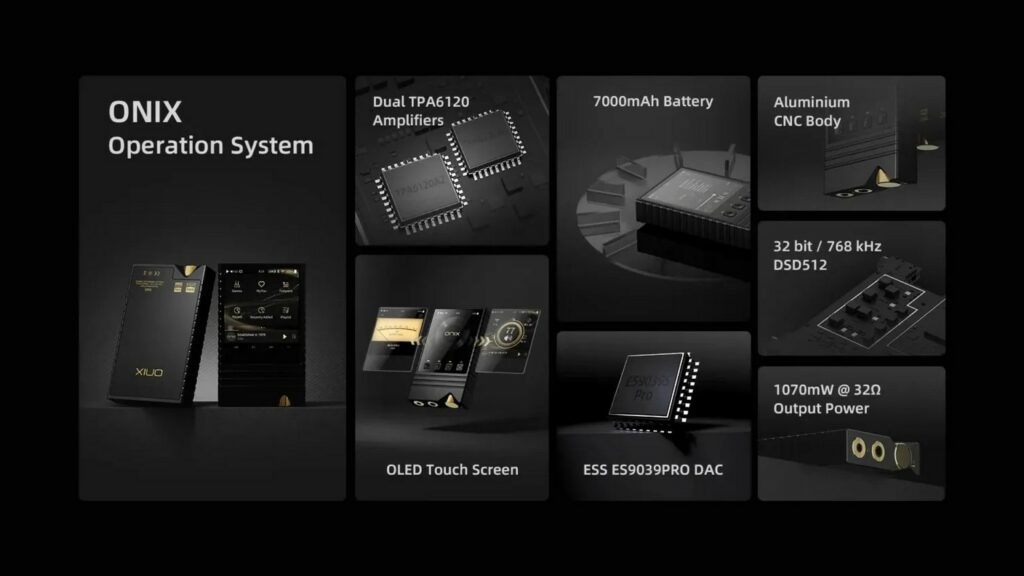
The ONIX Overture XM5 lists USB DAC support using an XMOS XU316 custom chip.
The Onix Tocata XM2 can function as a USB DAC and also offers digital audio output via USB. The iBasso DX180 can function as a USB DAC, and the HiBy R6 III supports USB DAC, coaxial, and line output. The Shanling M0 Pura can be used as a standalone player, a USB DAC for a laptop, a Bluetooth hub, and a USB-C digital transport for an external DAC.
Also check which USB-C port is intended for data.
Some portable audio devices have more than one USB-C connection or separate charging and source ports.
The Shanling H2, for example, is listed with USB-C for charging and USB-C for connecting to a source. If your player has separate ports, using the wrong one may charge the unit but not pass audio.
- Open the player’s settings menu and look for a USB mode, USB function, or system connection option.
- Select USB DAC mode if the player requires manual switching.
- Confirm whether the same USB-C port handles both charging and data, or whether the player has separate ports.
- Check whether the player’s battery should be charged before long DAC sessions, especially if it does not charge while operating in the selected mode.

Choose the correct USB cable and source device
A USB DAC connection needs a cable that carries data, not only power.
Many USB-C charging cables look suitable but are unreliable for audio because they may be designed mainly for charging.
If the player is not recognized by the computer or phone, the cable is one of the first things to suspect.
For a laptop with USB-C, a USB-C to USB-C data cable is usually the cleanest option.
For an older computer with USB-A, use a USB-C to USB-A data cable if your player has USB-C.
Some portable audio products include both cable types; for instance, the Shanling H2 package is described with a USB-C to USB-C cable for connecting to a phone, laptop, or tablet, and a USB-C to USB-A cable for charging. Your player’s included accessories may differ, so check what is supplied.
Using a phone or tablet as the host can be more sensitive than using a laptop.
The mobile device must be able to output USB audio, and the cable or adapter must support data in the correct direction.
If the player does not appear as an audio device, try a shorter cable, remove unnecessary hubs, and test first with a computer to confirm that USB DAC mode works.
- Start with the simplest connection: source device directly to the portable player, with no hub or dock.
- Use a known data-capable USB cable.
- Avoid loose adapters that put sideways pressure on the player’s USB-C port.
- If using a phone, make sure the phone is unlocked and the playback app is allowed to use external audio devices.
- If the player has a dedicated source/data USB port, connect to that port rather than the charging-only port.

Prepare the player before connecting headphones
Set the portable player up safely before pressing play.
A player used as a USB DAC/amp may remember its previous volume, gain, or output mode from standalone playback.
If it was last used with hard-to-drive headphones at high gain, the first sound through sensitive in-ear monitors could be far too loud.
Gain is the amplifier’s operating range.
Low gain is normally the safer starting point for sensitive earphones and efficient portable headphones.
High gain provides more voltage or power for more demanding headphones, but it also increases the risk of excessive volume if used carelessly. Balanced output can also provide more power than a single-ended output on many players, so do not treat the 4.4mm jack as merely a different plug shape.
Output options vary by player.
Many modern DAPs include a 3.5mm unbalanced headphone output and a 4.4mm balanced output, including the ONIX Overture XM5, Onix Tocata XM2, iBasso DX180, and HiBy R6 III.
Balanced connection requires headphones or a cable wired for balanced use. Do not plug a normal single-ended headphone cable into a balanced output with a random adapter unless the adapter is specifically designed for that purpose.
- Charge the player before setup so it does not shut down during configuration.
- Set the player to low gain before connecting headphones.
- Turn the player volume down before starting playback.
- Connect headphones to the correct output: 3.5mm single-ended or 4.4mm balanced, depending on your cable.
- Start playback at low volume and raise gradually.
Configure the computer, phone, or tablet for USB audio
Once the portable player is in USB DAC mode and connected, the host device should treat it as an external audio output.
On a computer, open the sound settings and choose the player as the output device.
In a playback app, also check whether the app has its own output-device selection. Some music applications can send audio directly to a chosen device rather than using the system default.
If your player supports very high-resolution audio, remember that the source app and operating system must also be configured appropriately.
Portable players such as the ONIX Overture XM5, Onix Tocata XM2, iBasso DX180, and HiBy R6 III are specified with support for PCM up to 768 kHz/32-bit and DSD512 in their respective playback or decoding capabilities.
That does not mean every computer app will automatically output those formats over USB in every situation. Treat high-resolution support as a capability chain: the file, app, operating system, USB connection, and player mode all have to support the chosen format.
For everyday reliability, begin with normal PCM playback from a familiar app.
After confirming stable sound, experiment with higher-resolution files or exclusive output modes if your software provides them.
If changing sample-rate settings causes silence or glitches, return to a standard setting and verify the connection again.
- Put the player into USB DAC mode before starting playback.
- Connect the USB cable and wait for the host device to recognize the player.
- Select the player as the audio output in the operating system.
- Select the player inside the music app if the app has a separate output menu.
- Test with a normal PCM track before trying DSD or very high sample-rate files.
Match headphones to the player’s output and gain
A portable music player used as a DAC/amp still has to be matched sensibly with headphones.
Two basic headphone terms matter: impedance and sensitivity.
Impedance, measured in ohms, is the electrical load the headphones present to the amplifier. Sensitivity describes how loud the headphones get from a given amount of power. High-sensitivity earphones need very little power and may reveal background noise more easily. Less sensitive or higher-impedance headphones may need more amplifier output.
Portable players vary widely in power and output impedance.
The Onix Tocata XM2 is listed with a 0.7-ohm output impedance and balanced output up to 800 mW into 32 ohms in high gain.
The ONIX Overture XM5 lists different output impedance values for its 3.5mm and 4.4mm outputs and higher power from balanced output than from unbalanced output. The iBasso DX180 is specified with higher maximum output power from its balanced connection than from its unbalanced output. These examples show why you should read the specifications for your specific player instead of assuming all outputs behave the same.
As a practical rule, start sensitive in-ear monitors on low gain and the lowest safe volume.
Move to high gain only if you cannot reach adequate volume or if the player’s manual suggests it for your headphone type.
For over-ear headphones that need more drive, the balanced output may be useful if you have the correct balanced cable. Never change gain or swap outputs while music is playing loudly.
- Use low gain first with IEMs and efficient portable headphones.
- Use high gain only when more volume or drive is genuinely needed.
- Use the 4.4mm balanced output only with a properly wired balanced headphone cable.
- If the sound is too loud at the first few volume steps, return to low gain or use a less powerful output.
- If the sound is too quiet even at high volume, check that the host device and player volume are both set correctly before blaming the headphones.
Use the player neatly at a desk or in a mobile stack
A portable music player is small enough to move between a pocket, office desk, and bedside setup, but it still needs careful placement when acting as a USB DAC/amp.
Keep the player on a stable surface where the headphone plug and USB cable are not being pulled.
Repeated strain on a USB-C port or balanced headphone jack can cause connection problems over time.
Heat and battery life also matter.
Some players offer different amplifier modes or higher-power balanced outputs that may draw more battery.
The HiBy R6 III, for example, is described with Class A and Class AB amplifier modes, with Class A being more demanding on power. Other players list different battery runtimes for balanced and unbalanced use, such as the ONIX Overture XM5 and Shanling M0 Pura. If the player becomes warm during a long session, give it airflow rather than covering it under papers, bedding, or a tight case.
For mobile pairing with a phone, keep the stack secure.
The Onix Tocata XM2 supports optional magnetic mounting cases for attaching the DAP to smartphones.
If you use any case, mount, or strap system, make sure it does not block ventilation, press the volume wheel, or bend the USB cable.
- Place the player flat on a desk with enough slack in both cables.
- Keep the volume wheel or buttons clear so they are not bumped accidentally.
- Do not cover the player during long high-gain or balanced-output sessions.
- Use a short, flexible USB cable for mobile stacking to reduce port stress.
- Disconnect by stopping playback first, then unplugging the headphones and USB cable gently.
Understand how USB DAC mode differs from Bluetooth and digital transport modes
Many portable players support several connection roles, and it is easy to confuse them.
USB DAC mode means the player receives digital audio over USB and plays it through its own analog headphone outputs.
Bluetooth receiving mode means the player receives audio wirelessly from a phone or computer. Digital transport mode means the player sends digital audio to a separate external DAC.
The ONIX Overture XM5 is described with two-way Bluetooth 5.2, LDAC, aptX HD, aptX, SBC, and AAC support, as well as USB DAC functionality and digital output for separate USB DACs.
The Shanling M0 Pura can function as a Bluetooth hub and can feed an external DAC via USB-C.
The Onix Tocata XM2 also supports two-way Bluetooth 5.2, DLNA, AirPlay, USB DAC operation, and digital audio output via USB.
For headphone listening through the player’s own amplifier, choose USB DAC mode, not digital output mode.
If you accidentally put the player into a digital transport mode, it may send audio out over USB instead of playing through the headphone jack.
If you choose Bluetooth instead of USB, the connection may be more convenient but is not the same signal path as wired USB DAC operation.
- Use USB DAC mode when the source is a laptop, phone, or tablet connected by USB and you want to listen from the player’s headphone jack.
- Use Bluetooth receiving mode when convenience matters more than a wired connection.
- Use digital output or transport mode only when feeding another DAC.
- If there is no sound from the headphone jack, confirm the player is not set to digital output only.
Maintain the player when it doubles as a DAC/amp
Using a portable player as a USB DAC/amp can increase how often you plug and unplug it, charge it, and handle its volume controls.
Basic maintenance helps keep it reliable.
Keep the USB-C port clean and dry, and avoid forcing connectors. If a plug does not seat easily, inspect the cable and port rather than pushing harder.
Battery care is also part of ownership.
Portable players in this category use internal rechargeable batteries and may support USB-C charging, with some models also supporting fast-charging protocols.
For example, the iBasso DX180 supports PD3.0 and QC3.0 fast charging, while the HiBy R6 III supports PD2.0 fast charging. Use charging accessories appropriate for the device and avoid leaving the player in hot environments while charging or playing.
Keep firmware and apps current when the manufacturer provides updates, especially on Android-based players such as the iBasso DX180 and HiBy R6 III.
For players with remote-control apps, such as Eddict Player support on ONIX and Shanling-related devices, check app compatibility if remote functions stop working after a phone update.
For USB DAC use, however, prioritize stable wired operation before adding remote control, Bluetooth, or streaming features.
- Inspect USB and headphone ports periodically for dust or debris.
- Use gentle cable removal; pull the plug, not the cable.
- Charge the player before long DAC sessions.
- Avoid heat buildup during charging and playback.
- Update firmware only according to the player maker’s instructions and do not interrupt an update.
Troubleshooting: no sound, dropouts, distortion, or noise
If the player is not recognized, first simplify the setup.
Use a direct USB connection, remove hubs, try another data cable, and confirm the player is in USB DAC mode.
If the same player works with a laptop but not with a phone, the issue may be the phone’s USB audio support, the adapter, or the direction of the cable connection.
If the device is recognized but there is no sound, check both volume controls.
Some setups have software volume on the computer or phone and hardware volume on the player.
Also confirm that the music app is outputting to the portable player rather than to speakers, Bluetooth headphones, or another device. If the player has line output, coaxial output, digital output, or USB DAC options, make sure the active mode sends audio to the headphone amplifier.
For distortion, start by lowering volume and gain.
Distortion can occur when the player, the source software, or the headphones are being driven too hard.
If the sound is harsh only from the balanced output, return to the 3.5mm output and verify that the balanced cable is correct. For hiss with sensitive earphones, use low gain, reduce volume, and try the output with the lower noise behavior specified for your player if the manual provides that information.
For dropouts or clicks, test with a standard PCM file before using very high-resolution PCM or DSD.
The player may support high resolutions, but the full playback chain still has to handle them reliably.
Also check battery level; some portable devices behave unpredictably when nearly empty or when switching between charging and playback.
- No recognition: switch to USB DAC mode, replace the cable, and connect directly without a hub.
- No sound: select the player as output in the system and app, then raise volume slowly.
- Distortion: lower software volume, lower player volume, and use low gain first.
- Hiss: use low gain and avoid excessive amplifier power with very sensitive IEMs.
- Dropouts: test a lower-resolution PCM track and remove unnecessary adapters or hubs.
Concise setup checklist
- Confirm your portable music player supports USB DAC or USB DAC/amp mode.
- Charge the player and set volume low before connecting headphones.
- Use a data-capable USB cable connected to the correct USB-C port.
- Select USB DAC mode on the player if manual selection is required.
- Choose the player as the audio output on the computer, phone, tablet, and playback app.
- Start with low gain, especially with sensitive in-ear monitors.
- Use 3.5mm single-ended or 4.4mm balanced only with the correct headphone cable.
- Begin with a normal PCM track, then try higher-resolution files after the setup is stable.
- Keep cables slack and avoid bending the USB or headphone ports.
- If problems occur, simplify the chain before changing advanced audio settings.
Common mistakes and how to avoid them
Using a charge-only USB cable.
Use a known data-capable USB cable.
If the player charges but is not recognized as an audio device, try another cable before changing other settings.
Forgetting to switch the player into USB DAC mode.
Check the player’s USB function menu.
Some players must be manually changed from storage, charging, or transport behavior into USB DAC operation.
Starting playback on high gain at high volume.
Set low gain and reduce volume before connecting headphones.
Raise volume gradually after playback starts.
Treating balanced and unbalanced outputs as interchangeable.
Use the 4.4mm balanced output only with a properly wired balanced cable.
Use the 3.5mm output for standard single-ended headphone cables.
Expecting every high-resolution format to work automatically from every app.
Verify the whole chain: file, app, operating system, USB connection, and player mode.
Start with standard PCM playback before trying DSD or very high sample rates.
Putting strain on the portable player’s ports in a desk or phone stack.
Use short, flexible cables, keep the player supported, and avoid adapters that lever against the USB-C or headphone jack.
Frequently asked questions
Can any portable music player be used as a USB DAC and headphone amp?
No.
The player must specifically support USB DAC or USB DAC/amp operation.
Many modern DAPs do, but it is not universal, so check the player’s settings or specifications before planning the setup.
Is USB DAC mode the same as playing music from a microSD card?
No.
With microSD playback, the player itself reads the files.
In USB DAC mode, a laptop, phone, or tablet sends digital audio to the player over USB, and the player converts and amplifies it for headphones.
Should I use the 3.5mm or 4.4mm output?
Use 3.5mm for normal single-ended headphone cables.
Use 4.4mm balanced only if your headphones have the correct balanced cable.
Balanced outputs often provide more power, so start with low volume and low gain.
Why does my player charge but not appear as an audio device?
The most common causes are a charge-only cable, the wrong USB port on the player, or the player not being set to USB DAC mode.
Try a direct connection with a data cable and confirm the USB mode in the player’s menu.
Do I need high gain for better sound?
Not automatically.
High gain is for headphones that need more drive.
Sensitive earphones usually work better and more safely on low gain because it gives finer volume control and reduces the risk of excessive loudness.
Can I use Bluetooth instead of USB?
If your player supports Bluetooth receiving, you may be able to use it wirelessly, but that is a different mode from USB DAC operation.
Use USB DAC mode when you want a wired digital connection from the source to the player.
Conclusion
A compatible portable music player can be a flexible USB DAC and headphone amplifier for a laptop, phone, or tablet, but the setup works best when treated as a proper signal chain.
Confirm USB DAC support, use the correct data cable and port, select the player as the host device’s audio output, and begin with low gain and low volume.
Match the headphone output to the cable you actually own, keep balanced connections for properly wired balanced headphones, and avoid stressing the USB-C and headphone ports. If something fails, simplify the connection, test with standard PCM playback, and check mode, cable, output selection, gain, and volume in that order. Done correctly, a portable music player can serve at home, at the office, and on the move without giving up the dedicated DAC and amplifier hardware that makes this category useful beyond standalone playback.

Join the discussion
Share your thoughts, listening impressions or product experience.