


Wireless headphones and true wireless earbuds are no longer just convenience products.
Many now include high-bitrate Bluetooth codecs, active noise cancellation, companion apps, EQ, multipoint pairing, wired inputs, spatial audio, and advanced microphone processing.
But those features only help if the headphones are fitted, connected, and configured properly. The goal is simple: get the cleanest signal your equipment supports, maintain a stable connection, avoid unnecessary processing, and make sure the drivers are working with a good physical seal. This guide walks through the practical setup steps that improve everyday sound quality without turning your headphone system into a complicated science project.
Choose the right listening mode before you start
Most wireless headphones and earbuds offer more than one way to listen.
True wireless earbuds usually rely entirely on Bluetooth and their charging case.
Wireless over-ear headphones may add a 3.5mm wired input, USB-C charging, app control, active noise cancellation, and sometimes multipoint Bluetooth. Some gaming-focused wireless headsets use a base station as the control hub, allowing several sources to be managed from one place.
For better hi-fi sound, decide what you are optimizing for: maximum quality, convenience, isolation, calls, or low-friction switching between devices.
A headphone such as the TANCHJIM RITA or FiiO EH13 illustrates the modern over-ear approach: Bluetooth with LDAC support, active noise cancellation, app-based EQ, and a 3.5mm wired option.
Sony’s WF-1000XM6 shows the true wireless approach: LDAC, a companion app with EQ, adaptive noise cancellation, ambient sound, touch controls, and a charging case. A headset such as the SteelSeries Arctis Nova Pro Wireless adds another pattern: a base station that can switch between connected sources while Bluetooth remains available for mobile use.
The important setup lesson is that wireless headphones are not one fixed system.
They are a combination of acoustic fit, Bluetooth settings, app settings, noise-control modes, and source-device behavior.
Treat each part as adjustable.
- Identify whether your headphones are Bluetooth-only, Bluetooth plus wired, or Bluetooth plus a dedicated base station.
- Install the manufacturer’s companion app if your model supports one and you plan to use EQ, ANC adjustment, control customization, or sound profiles.
- Check whether your source device supports the same high-quality codec as the headphones, such as LDAC on compatible models.
- Decide whether you need multipoint pairing, a wired backup, or a dedicated gaming/chat setup before pairing everything at once.
Get the physical fit right first
Fit is the first hi-fi setting.
If over-ear headphones do not seal evenly around your ears, bass can weaken, noise cancellation can behave inconsistently, and outside sound can mask detail.
If earbuds do not sit securely in the ear canal, the tonal balance can shift and the sound may become thin or uneven.
For over-ear wireless headphones, the ear cushions should surround the ear without leaving obvious gaps.
Soft synthetic leather or memory-foam pads, as used in several modern designs, are intended to create both comfort and passive isolation.
Passive isolation means the physical blocking of outside noise before any electronic noise cancellation is applied. Active noise cancellation works best when the basic fit is already stable.
For earbuds, try the included ear tips before judging the sound.
A tip that feels comfortable but does not seal can reduce bass and make treble seem too prominent.
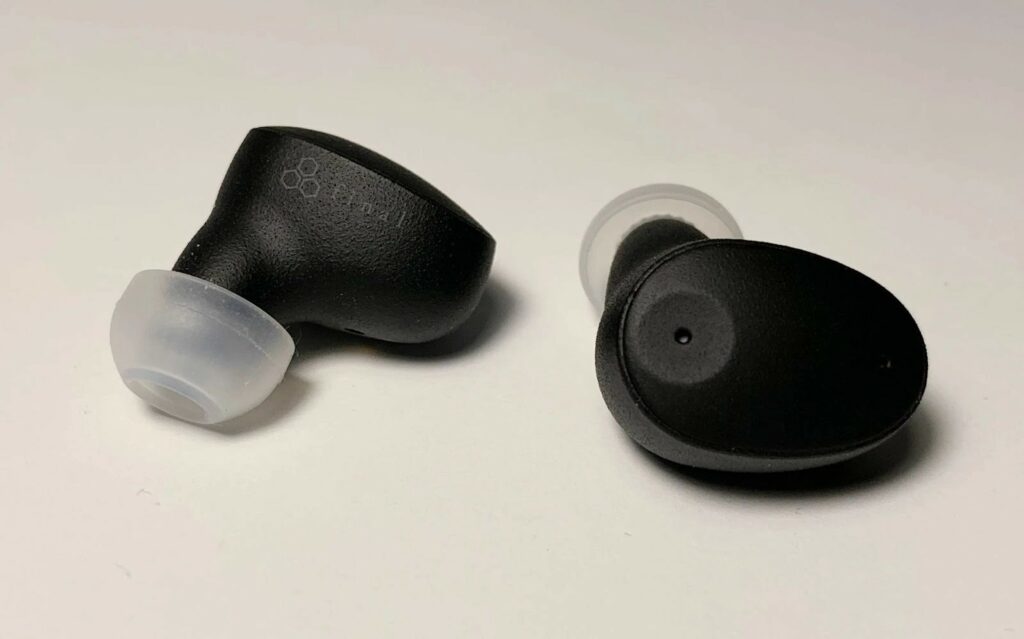
A tip that is too large may create pressure and make long listening sessions tiring. Compact earbuds such as the Final Audio ZE300 demonstrate why small size and ergonomics matter: secure placement reduces pressure and helps keep the listening experience consistent.
Ventilation also matters.
Some in-ear designs use venting to reduce the “plugged-in” sensation and internal noises such as footsteps or chewing.
If your earbuds include fit guidance in the app, use it; if not, test each tip size with familiar music and normal movement.
- Put on over-ear headphones and adjust the headband until both earcups sit at the same height.
- Check that glasses, hair, hats, or thick collars are not breaking the ear-pad seal.
- For earbuds, test every included tip size, not just the one already installed.
- After fitting, play a familiar track and listen for balanced bass and a centered vocal image.
- If one side sounds quieter or thinner, reseat that earbud or adjust the earcup before changing EQ.
Pair cleanly and manage Bluetooth connections
Bluetooth setup affects both sound quality and daily reliability.
A clean pairing process reduces confusion, especially when headphones appear as more than one audio endpoint on a computer.
Some wireless headsets can expose separate playback, chat, or software-controlled outputs, which is useful once configured but confusing when the wrong endpoint is selected.
Start with one source device.
Pair your headphones or earbuds, confirm that music plays, then adjust the audio output selection in the operating system or app.
On a phone, this is usually simple. On a computer, especially Windows, check the active output device carefully if you see multiple versions of the same headset. Choose the endpoint intended for full-range listening when playing music, and use chat-specific routing only when needed for voice communication or gaming.
Multipoint Bluetooth lets compatible headphones connect to two devices at the same time.
The FiiO EH13 is one example of a headphone designed for simultaneous connection to two Bluetooth devices.
This is useful when switching between a phone and laptop, but it can also create interruptions if notifications, calls, or app sounds take priority unexpectedly. For critical listening, fewer active connections can mean fewer surprises.
If your wireless system uses a base station, connect the base station first and learn its source-switching behavior before adding Bluetooth devices.
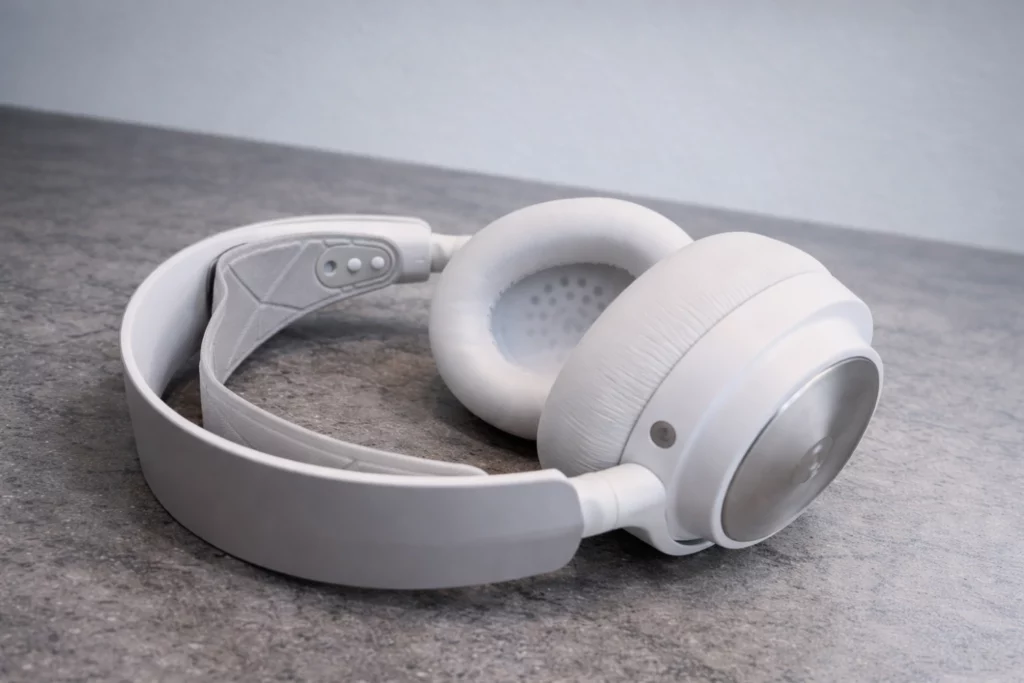
The SteelSeries Arctis Nova Pro Wireless is an example of a headset where the base station is not just a charger but the center of the setup, with multiple inputs and source switching.
- Pair the headphones with one device first and confirm stable playback.
- On computers, select the correct full-quality playback output before judging the sound.
- Add a second Bluetooth device only after the first connection is working reliably.
- If multipoint switching becomes distracting, disconnect the device you are not actively using.
- When using a base station, set up its wired or USB inputs first, then add Bluetooth as a secondary source.
Use the best Bluetooth codec your system supports
A Bluetooth codec is the method used to compress and transmit audio wirelessly.
Every Bluetooth headphone connection uses a codec.
Common baseline options include SBC, while some ecosystems use AAC. Several hi-fi-oriented wireless headphones and earbuds also support LDAC, a higher-bitrate Bluetooth codec that can carry more audio data when used with compatible source devices.
LDAC support appears on models such as the TANCHJIM RITA, Sony WF-1000XM6, and FiiO EH13.
The key word is compatible: both the headphones and the phone, player, or computer must support the codec.
If the source does not support LDAC, the connection will fall back to another available codec. This does not mean the headphones are broken; it means the system is using the best common language both sides understand.
Do not assume the highest-quality codec is automatically active.
Some devices require you to enable a high-quality Bluetooth mode in system settings or developer/audio settings.
Companion apps may also expose quality or stability preferences. If you experience dropouts, especially in busy wireless environments, a more stable mode may be preferable to a higher-bitrate setting. Hi-fi setup is not only about theoretical maximum quality; it is about clean, uninterrupted playback.
Wired mode can still be useful.
Wireless over-ear headphones with a 3.5mm input allow listening from a laptop, plane system, portable player, or when the battery is low.
Some models also apply digital signal processing to maintain a consistent sound character across wired and wireless operation, but behavior varies by design.
- Check the headphone specifications for supported codecs such as SBC, AAC, or LDAC.
- Check the source device’s Bluetooth audio settings to see which codec is actually active.
- Enable the highest-quality supported codec when the connection remains stable.
- If music stutters or drops out, try a stability-focused Bluetooth mode or reduce distance and obstacles between source and headphones.
- Use wired mode when available if Bluetooth is unavailable, the battery is low, or the source device is better suited to a cable connection.
Configure the companion app without over-processing the sound
Many wireless headphones now rely on a companion app for their best features.
Apps may offer EQ, preset sound profiles, ANC level adjustment, touch-control customization, spatial modes, firmware updates, or call-processing settings.
Sony’s app for the WF-1000XM6 includes a 10-band equalizer and control customization. The FiiO Control App provides EQ presets and custom settings for the EH13. TANCHJIM’s app provides EQ settings, DSP sound profiles, and other customization options for the RITA.
EQ means equalization: changing the level of selected frequency areas.
Bass, midrange, and treble are the simple terms, but multi-band EQ lets you make more precise changes.
The safest hi-fi approach is to make small adjustments. If you add too much bass, you may mask vocals and reduce perceived detail. If you add too much treble, the sound may seem clearer at first but become sharp or fatiguing. If you reduce too much midrange, vocals and instruments can lose natural body.
DSP means digital signal processing.
It can be useful for maintaining a consistent sound or adding modes for games and movies, but every extra mode changes the signal.
For music listening, begin with the default or balanced profile, then adjust only what bothers you. If your headphones already have a balanced tuning, radical EQ is rarely the best first step. Fit, codec, and ANC settings should be checked before heavy EQ.
- Install the official app and confirm that the headphones are recognized.
- Start with the default or balanced sound profile.
- Use small EQ changes rather than extreme bass or treble boosts.
- Create separate profiles only when they solve a real problem, such as clearer dialogue, less bass at night, or more presence for podcasts.
- If the sound becomes unnatural, return to the default profile and recheck fit and codec settings first.
Set active noise cancellation and ambient mode for sound and safety
Active noise cancellation, or ANC, uses microphones and processing to reduce external noise.
Hybrid ANC systems use microphones in more than one position to monitor outside noise and the sound inside the earcup or earbud.
This can make music easier to hear in transport, offices, and other steady-noise environments because you do not have to raise the volume as much to overcome background sound.
ANC is not always the best setting for every moment.
Some headphones offer multiple noise-canceling levels, as seen on the FiiO EH13.
Others adapt automatically to the environment, as described for the Sony WF-1000XM6. In quiet rooms, you may prefer ANC off if it gives the most natural feel. In loud transport or near air conditioning, ANC can make low-level detail easier to perceive by reducing masking noise.
Ambient or transparency mode does the opposite: it lets outside sound in using microphones.
This is important when walking near traffic, listening for announcements, or having quick conversations.
Features such as Quick Attention or Speak-to-Chat on Sony earbuds are examples of using ambient sound to move between listening and awareness without removing the earbuds.
The safety rule is straightforward: do not use strong isolation or maximum ANC when you need to hear your surroundings.
Better hi-fi sound is not worth losing situational awareness in traffic, stations, workplaces, or shared environments.
- Use ANC in steady noisy environments such as transport, offices, or rooms with constant background noise.
- Try lower ANC levels if your headphones offer them and full cancellation feels unnatural.
- Use ambient mode when walking, crossing streets, waiting for announcements, or speaking to someone.
- Turn ANC off in quiet rooms if you prefer a more open or less processed presentation.
- Avoid relying on ANC as a safety feature; it reduces noise but does not make environments predictable.
Optimize calls, gaming, video, and chat without hurting music playback
Wireless headphones often serve several jobs: music, calls, video, gaming, and meetings.
Each task can use different settings.
For calls, microphones and voice processing matter more than codec quality. For music, full-range stereo playback matters more. For gaming, separate chat and game audio may be useful, but it can also create routing confusion.
Some headsets provide advanced voice processing.
The SteelSeries Arctis Nova Pro Wireless, for example, includes a retractable microphone and noise-reduction features intended to reduce background distractions.
The FiiO EH13 uses built-in microphones with ENC processing for voice communication. ENC usually means environmental noise cancellation for the microphone side: it tries to emphasize your voice and reduce surrounding noise for the person listening to you.
If your computer shows separate music and communications outputs, choose carefully.
A chat-oriented mode may be useful for meetings but may not sound best for music.
In software that separates game and chat channels, label or remember the routing so you do not accidentally play music through the wrong path.
For video, check sync by watching speech.
If dialogue appears out of time, try another app, reconnect Bluetooth, or use wired mode if your headphones support it and the source allows it.
- Use the headphone’s full-range stereo output for music playback.
- Use the communications or chat path only for calls, meetings, or gaming chat when required.
- Position boom or retractable microphones according to the headset design, and avoid covering earbud microphones with hats or hands.
- If call quality is poor, reduce background noise, disable unnecessary multipoint devices, and confirm the app is using the headphone microphone.
- For gaming headsets with software routing, set game, chat, and music channels deliberately rather than accepting random defaults.
Manage battery, charging, and wired backup
Wireless sound quality depends on reliability, and reliability depends partly on battery management.
Over-ear headphones can offer very long runtimes, while true wireless earbuds depend on both earbud charge and case charge.
Battery claims vary by model and by whether ANC is active. For example, ANC generally reduces playback time compared with ANC off on wireless models that provide both figures.
Build a simple routine.
Charge the case for true wireless earbuds before travel.
For over-ear headphones, top them up before long workdays or flights. If your headset uses removable batteries and a charging base, keep one battery charging while the other is in use, then swap when needed. That style of system reduces downtime because you are not waiting with a cable attached to the headset.
USB-C charging is common on newer models, but do not assume every product includes every accessory.
Some compact earbuds may ship without a charging cable.
Keep a known-good cable in your headphone bag if you rely on wireless listening away from home.
A 3.5mm wired input is worth testing before you need it.
Not every wireless headphone behaves the same in wired mode, and some features may depend on power or app control.
Still, a cable can be the simplest fix when the battery is low, Bluetooth is unstable, or a source device does not support the codec you want.
- Charge headphones or the earbud case before long listening sessions.
- Remember that ANC usually reduces runtime compared with ANC off.
- Keep a compatible USB-C cable available if your headphones charge that way.
- Test wired mode at home so you know how it behaves before travel.
- If your headset uses swappable batteries, rotate them regularly so one is always ready.
Troubleshoot weak, harsh, or unreliable sound
If wireless headphones sound disappointing, do not jump straight to replacement.
Most problems come from fit, source selection, codec fallback, aggressive EQ, ANC behavior, or multipoint confusion.
Weak bass usually points to a poor seal, especially with earbuds.
Try different ear tips, reseat the earbuds, or adjust the over-ear headband.
Harsh treble can come from fit issues, a bright EQ setting, or too much processing. Muffled vocals can result from excessive bass boost or the wrong output mode on a computer.
Dropouts are usually connection problems.
Move the source closer, reduce obstacles, disconnect unused multipoint devices, or use a more stable Bluetooth setting.
If a computer lists several headphone endpoints, switch to the correct one. If Bluetooth switching feels clunky, simplify the setup by pairing fewer devices until you find the stable configuration.
If ANC changes the tonal balance in a way you dislike, compare ANC on, ANC off, and ambient mode at the same volume.
Some headphones include DSP compensation to reduce differences between ANC modes, but you should still choose the mode that works best for the environment and your listening preference.
- For weak bass: check ear tips, ear-pad seal, and headphone position before using EQ.
- For harshness: reduce treble EQ or return to the default sound profile.
- For muffled sound: reduce bass boost and confirm you are using the full-range music output.
- For dropouts: reduce distance, remove obstacles, disconnect extra devices, or choose a more stable Bluetooth mode.
- For confusing computer audio: select the correct playback endpoint and disable unused outputs if necessary.
Wireless headphone hi-fi setup checklist
- Fit the headphones or earbuds carefully before changing sound settings.
- Pair with one source first, then add multipoint or secondary devices later.
- Confirm the active Bluetooth codec and use LDAC only when both headphone and source support it.
- Install the companion app for EQ, ANC, controls, and sound-profile settings when available.
- Start with the default or balanced tuning, then make small EQ adjustments.
- Use ANC for steady background noise and ambient mode when awareness matters.
- Select the correct full-range audio output on computers, especially if several headset endpoints appear.
- Test wired mode if your over-ear headphones include a 3.5mm input.
- Charge the earbuds, case, or headset before long sessions, and remember that ANC reduces battery life.
- Troubleshoot fit, codec, EQ, and routing before assuming the headphones are at fault.
Common setup mistakes and how to avoid them
Judging sound quality before getting a proper seal
With earbuds, try all included tip sizes.
With over-ear headphones, adjust the headband and check that the pads sit evenly around the ears.
A poor seal can reduce bass and make the sound seem thin.
Assuming LDAC or another high-quality codec is active automatically
Check both the headphone specifications and the source-device Bluetooth settings.
The source and headphones must support the same codec, and some devices require manual selection.
Using extreme EQ to fix a fit or connection problem
Return to the default sound profile, fix the physical fit, confirm the correct codec and output, then make small EQ changes only if needed.
Leaving multipoint connected when it causes interruptions
Multipoint is convenient, but notifications and calls from a second device can interrupt listening.
Disconnect the unused device during focused music sessions.
Using maximum ANC when situational awareness is needed
Use ambient or transparency mode when walking near traffic, listening for announcements, or speaking with people.
Strong isolation is useful, but not in every environment.
Selecting the wrong computer audio endpoint
If your headset appears as several outputs, choose the full-range stereo playback device for music and reserve chat or communications endpoints for calls and games.
Frequently asked questions
Do wireless headphones need LDAC to sound hi-fi?
Not necessarily.
LDAC is a high-bitrate Bluetooth codec and can be useful when both the headphones and source device support it, but fit, tuning, EQ, ANC behavior, and connection stability also matter.
A stable, well-fitted headphone using a standard codec can sound better than a poorly fitted one using a higher-bitrate mode.
Should I use ANC all the time?
Use ANC when it helps reduce steady background noise, such as transport, office hum, or air conditioning.
In quiet rooms, you may prefer ANC off.
When you need awareness, use ambient mode instead of strong noise cancellation.
Why do my earbuds have weak bass?
The most common cause is an incomplete ear-tip seal.
Try different tip sizes, insert the earbuds securely, and check that both sides feel balanced.
Only adjust EQ after the physical fit is correct.
Is wired mode better than Bluetooth on wireless headphones?
Wired mode can be useful when Bluetooth is unavailable, unstable, or the battery is low.
Some wireless headphones include a 3.5mm input for this reason.
However, behavior varies by model, and some digital features may depend on power or app processing.
Why does my headset show multiple audio devices on Windows?
Some wireless headsets expose separate endpoints for music, chat, game audio, or software processing.
Select the full-range stereo output for music.
Use chat or communications outputs only when needed for calls or gaming.
Should I use the manufacturer’s app?
Yes, if your headphones support useful settings through it.
Apps may provide EQ, ANC levels, control customization, DSP profiles, and other options.
Start with the default sound, then adjust carefully.
Conclusion: better wireless headphone sound starts with setup, not hype
The best wireless headphone setup is methodical.
First, get the physical fit right so the drivers and noise control can work properly.
Next, pair cleanly, select the correct playback output, and confirm the best stable Bluetooth codec your source and headphones both support. Then use the companion app with restraint: small EQ changes, sensible ANC settings, and practical control customization are more useful than dramatic processing. For daily listening, remember that ANC, ambient mode, multipoint, wired input, microphone routing, and battery management are all part of the hi-fi experience. Wireless headphones and earbuds can deliver clean, enjoyable sound, but only when the connection, fit, and settings work together.


Join the discussion
Share your thoughts, listening impressions or product experience.