


A portable digital audio player, or DAP, is more than a pocket music library.
Many modern players can work as a headphone source, a Bluetooth transmitter or receiver, a USB DAC for a computer, a digital transport, or a compact source for an amplifier and active speakers.
The key is choosing the correct output, matching the player’s volume and gain to the connected equipment, and avoiding cable or mode mistakes that can cause noise, distortion or no sound. This guide explains the practical connection options found on today’s portable music players and shows how to set them up safely for everyday listening at home or on the move.
Understand the Outputs on a Portable Digital Audio Player
Most digital audio players convert music files into an analog signal using an internal DAC, short for digital-to-analog converter.
The analog signal then leaves the player through one of several outputs.
Common examples include a 3.5 mm single-ended headphone jack, a 4.4 mm balanced headphone output, a dedicated or switchable line out, USB-C digital audio, and Bluetooth wireless audio.
A single-ended headphone output is the familiar 3.5 mm connection used by many wired headphones and in-ear monitors.
A balanced output, often 4.4 mm on current players, uses a different wiring arrangement and is intended for headphones or cables designed for balanced connection.
It is not simply a “better 3.5 mm jack” and should not be adapted casually into other inputs unless the player and receiving equipment explicitly support that use.
A line out is different from a headphone output.
It is intended to feed another device, such as an integrated amplifier, headphone amplifier, desktop DAC/amp or active speaker input.
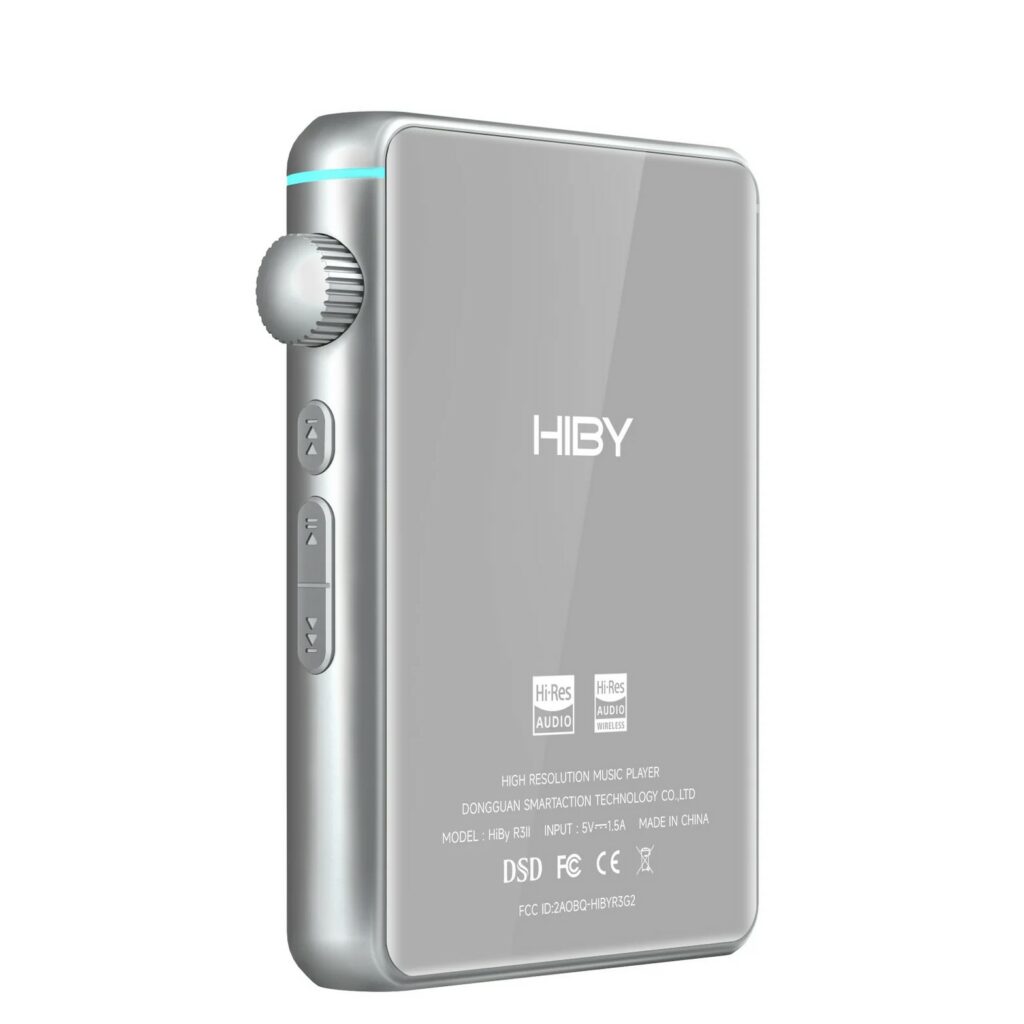
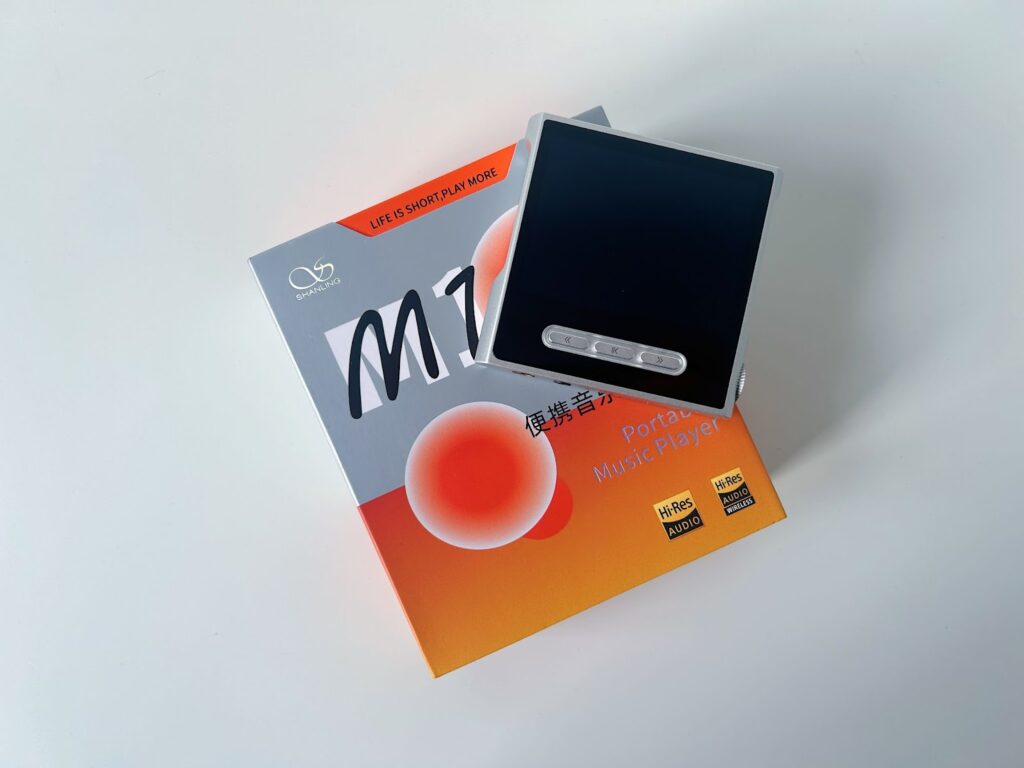
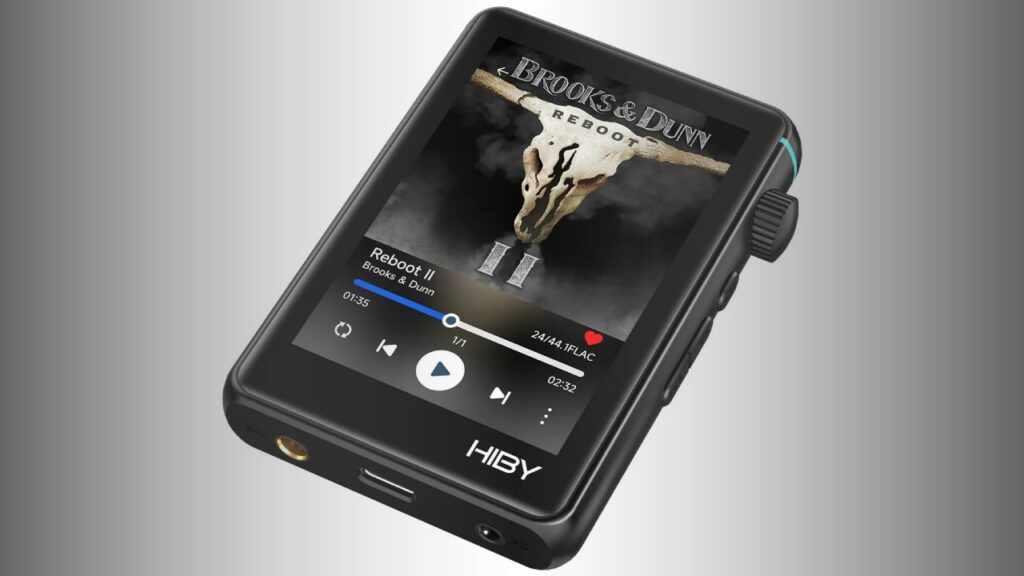
Some portable players provide a clearly separate line out; others allow the headphone output to be switched into line-out mode. For example, compact DAPs such as the Shanling M1s and F.Audio M20 are described with outputs that can function as headphone or line outputs, while the HiBy R3II 2025 includes a 3.5 mm line out alongside headphone connections.
USB-C is usually used for charging and file transfer, but many players can also use it for digital audio.
Several current DAPs can operate as an external DAC for a computer or smartphone, or as a digital transport feeding another DAC.
Bluetooth adds wireless flexibility, with common codec support across modern players including SBC, AAC, aptX variants, LDAC and, on some models, LHDC or UAT. Codec support matters only when both the player and the receiving device support the same codec.
- Identify every physical output on your DAP before buying cables.
- Check whether each jack is headphone out, line out, or switchable in the player’s settings.
- Use balanced outputs only with balanced headphone cables or compatible balanced inputs.
- Use USB-C for digital audio only when the player’s manual or settings confirm USB DAC or digital transport operation.
Connecting Wired Headphones and In-Ear Monitors
For most owners, the headphone connection is the main reason to use a portable music player.
The basic setup is simple: plug the headphones into the correct output, start at low volume, choose the right gain setting, and adjust slowly.
The details matter because in-ear monitors can be very sensitive, while full-size over-ear headphones may require more voltage or current from the player’s amplifier stage.
Gain controls how much amplification the player applies before the volume control reaches your ears.
Low or normal gain is generally the safer starting point, especially with sensitive in-ear monitors.
High gain is intended for harder-to-drive headphones. Some players are designed to simplify this choice: the Astell&Kern PS10, for example, is described with impedance-adaptive dual amplifiers and a Smart Gain function that selects an amplifier based on the impedance of connected headphones. Other DAPs offer manual gain levels, such as two-level or multi-step gain controls.
Balanced headphone output can provide a separate balanced signal path when the player and headphones are designed for it.
On players with both 3.5 mm and 4.4 mm outputs, the balanced output may have different power capability or battery use compared with the single-ended output.
The important rule is compatibility: a 4.4 mm balanced jack requires a headphone cable terminated for that connection.
If you hear hiss with sensitive earphones, try low gain, reduce any EQ boost, and confirm that you are using the headphone output rather than line out.
If the headphones sound too quiet even near the top of the volume range, check whether high gain is appropriate and whether the headphones are unusually demanding for a portable player.
- Turn the DAP volume down before connecting headphones.
- Plug 3.5 mm headphones into the single-ended headphone output or 4.4 mm headphones into the balanced output.
- Start in low or normal gain, then raise volume gradually.
- Switch to high gain only if the headphones need more level and the sound remains clean.
- Pause playback before unplugging or changing cables.

Connecting Bluetooth Headphones, Speakers and Soundbars
Bluetooth is convenient when you want the player in a pocket or bag without a cable to your headphones.
Many portable music players support two-way Bluetooth, meaning they can transmit audio to wireless headphones or receive audio from another device.
The Shanling M1s, F.Audio M20 and other modern DAPs are described with bidirectional Bluetooth support, while current players commonly list codecs such as AAC, aptX, aptX HD, aptX LL, LDAC and SBC depending on the model.
A Bluetooth codec is the method used to encode audio for wireless transmission.
SBC is the basic universal option.
AAC is common on many mobile devices. aptX variants and LDAC are higher-capability options when both devices support them. If a headphone and player do not share a higher-grade codec, they will fall back to a common one. That is normal and not necessarily a fault.
Bluetooth is also useful with active speakers and soundbars, provided the receiving device supports Bluetooth audio.
The connection is simple, but remember that Bluetooth bypasses the player’s analog outputs.
The quality and volume behavior are determined by the wireless connection, the codec, and the receiving speaker or headphone electronics.
If Bluetooth stutters, reduce distance, remove obstacles, disable unnecessary simultaneous wireless connections, and make sure both devices are charged.
If pairing fails, delete the old pairing on both devices and repeat the pairing process from the beginning.
- Put the headphones, speaker or soundbar into pairing mode.
- Open the DAP’s Bluetooth settings and select the receiving device.
- Choose a preferred codec only if the player provides that option and both devices support it.
- Set a moderate player volume, then fine-tune on the headphones or speaker if they have independent volume.
- For connection problems, forget the device and pair again.
Connecting a DAP to a Headphone Amplifier or Integrated Amplifier
A portable player can be an excellent source for a separate amplifier.
The cleanest approach is to use line out, because line out is designed to feed another amplifier stage.
This avoids using the DAP’s headphone amplifier and the external amplifier at the same time. When a player has a dedicated line out, use it. When the output is switchable, change the mode in the player’s settings before connecting.
The physical cable depends on the sockets available.
Many portable players use 3.5 mm analog output, while amplifiers may accept RCA, 3.5 mm, or other analog inputs.
Use the shortest practical cable that matches the connectors. Do not plug a speaker-level amplifier output back into a DAP; the DAP is a source device, not a speaker input.
Volume behavior is important.
Some line outputs are fixed level, while some switchable outputs may still allow volume adjustment depending on the player.
Because designs differ, always start with the external amplifier turned down. Then begin playback and raise the amplifier volume slowly. If the signal sounds distorted immediately, stop and check whether the DAP is in headphone mode at a very high volume, whether EQ is boosting too much, or whether the wrong input was selected on the amplifier.
Portable players can also feed external DACs digitally through USB-C or, on some models, coaxial digital output.
For instance, some DAPs list USB-C digital use, and the iBasso DX320 MAX TI is described with USB-C and mini coaxial outputs.
In a digital connection, the external DAC performs the digital-to-analog conversion, while the DAP acts mainly as storage, interface and transport.
- Select line out on the DAP if available.
- Turn down the amplifier volume before connecting.
- Connect the DAP’s line output to an analog input on the amplifier.
- Start playback and raise the amplifier volume gradually.
- For digital use, connect USB-C or another supported digital output to a compatible DAC input and select the correct input on the DAC or amplifier.
Connecting to Active Speakers
Active speakers have built-in amplification, so they need a source-level signal rather than a power-amplified speaker signal.
A DAP can feed active speakers by analog line out, Bluetooth, USB digital audio if the speakers support USB input, or through a dedicated dock where available.
The Astell&Kern PS10 is a useful example of a pocket player supplied with a docking station intended for straightforward connection to an amplifier or active speakers.
For analog connection, use the DAP’s line out where possible.
Connect it to the active speakers’ line-level input.
Some active speakers use a 3.5 mm stereo input, while others use RCA or balanced-style inputs. Match the cable to the speaker input and avoid improvised adapters that change balanced wiring into single-ended wiring unless the manufacturer says it is safe.
If using Bluetooth, pair the DAP directly with the active speakers.
This is the simplest cable-free setup, but it depends on the speaker’s Bluetooth implementation and shared codec support.
If using USB, the active speaker must support USB audio input, and the DAP must support USB digital output or transport mode. A charging-only USB port on a speaker will not work as an audio input.
Place the DAP where cables are not under strain.
If the player is on a desk feeding active speakers, avoid leaving it hanging from a short cable, and keep the USB-C charging cable from pulling sideways on the port.
For wireless playback, keep the player within reliable range and away from thick obstacles that can weaken Bluetooth or Wi-Fi connections.
- Choose the connection type: line out, dock, Bluetooth, or USB digital audio.
- For analog use, enable line out and connect to the active speaker’s line input.
- For Bluetooth use, pair the DAP with the speakers and confirm audio is routed to them.
- For USB use, confirm that both the player and speakers support USB audio, not only charging.
- Set the speakers low first, then raise volume carefully.
Using a Portable Player as a USB DAC for a Computer or Smartphone
Many current DAPs can operate as an external DAC.
In this mode, the computer or smartphone sends digital audio to the player over USB, and the DAP handles conversion and headphone amplification.
The Astell&Kern PS10 and PD20, Shanling M1s, HiBy R3II 2025 and F.Audio M20 are all described with USB DAC or external DAC capability in different forms.
This setup is useful when you want the DAP’s headphone outputs while listening from a laptop, desktop computer or phone.
It can also reduce reliance on the computer’s built-in audio output.
The HiBy R3II 2025 is described as drawing power from its internal battery in USB audio dongle mode, which helps reduce noise from external sources and conserves the battery of the connected smartphone or computer.
To use USB DAC mode, you normally select the mode on the player, connect a USB-C cable, and choose the DAP as the audio output device on the computer or mobile device.
If the source device does not recognize the player, try a data-capable USB cable rather than a charge-only cable, check the DAP’s USB mode, and confirm operating-system compatibility.
Some devices list UAC 1.0/2.0 support; those are USB Audio Class modes that help determine compatibility with different operating systems and devices.
When the DAP is working as a USB DAC, its local microSD library may not be the source of the music.
The computer or phone is sending the audio stream.
Volume may be controlled in more than one place, so start low on both the source and the DAP.
- Enable USB DAC mode on the DAP.
- Connect the DAP to the computer or smartphone using a data-capable USB cable.
- Select the DAP as the audio output device on the source.
- Connect headphones to the DAP, not to the computer.
- Start with low volume and raise gradually.
Library, Storage and Network Setup for Reliable Playback
Portable players are often used with local files stored internally or on microSD cards.
Many current DAPs support large microSD expansion; several models in the category list support up to 2 TB, while some also include internal storage.
Keeping local files organized helps the player scan and display the library correctly.
Use file formats your player supports.
Modern DAPs commonly support high-resolution PCM and DSD, plus everyday formats such as FLAC, WAV, ALAC, AAC and MP3, depending on the model.
Some players also support CUE sheets, ISO files, MQA, DLNA, AirPlay or streaming over Wi-Fi. Do not assume every player supports every format just because another player does.
Wi-Fi features can turn a DAP into a network music device.
Models such as the PS10, M1s, R3II 2025 and NiPO N2 include Wi-Fi capabilities in their descriptions, with features such as DLNA, AirPlay or streaming depending on the player.
For best reliability, connect to a stable Wi-Fi network and keep the player charged during long library scans, firmware updates or streaming sessions.
Charging and battery management also affect setup reliability.
USB-C is widely used for charging and file transfer on modern players.
Some players support fast charging standards, while others specify ordinary USB charging requirements. Use an appropriate charger recommended by the manufacturer and avoid forcing cables into the port.
- Format and load the microSD card according to the player’s instructions.
- Keep album folders and file names consistent to make browsing easier.
- Use supported formats rather than assuming universal playback.
- Charge the player before long listening sessions, firmware updates or library scans.
- Use Wi-Fi features only after confirming the player supports the service or network protocol you want.
Troubleshooting No Sound, Noise or Distortion
If there is no sound, begin with the simplest checks.
Confirm the player is not paused, muted or connected to the wrong output.
A DAP may continue sending audio to Bluetooth headphones even when a cable is plugged in, depending on its routing behavior. Disconnect Bluetooth or manually select the wired output if needed.
If sound is too quiet, check the gain setting, output mode and cable.
A line-out setting may behave differently from headphone mode, and a digital output will not feed analog headphones directly.
If the player is connected to an amplifier or active speakers, confirm the amplifier input is selected and the speakers are powered on.
If sound is distorted, reduce volume immediately.
Check whether you are feeding a headphone output at high level into an amplifier input, using aggressive EQ boost, or running high gain into sensitive earphones.
If using line out, start again with the receiving amplifier or active speaker volume low. If using Bluetooth, try a standard codec or re-pair the device.
If you hear hiss or background noise with sensitive in-ear monitors, use low gain, disable unnecessary sound processing, and check whether the output is appropriate for the earphones.
If USB DAC mode is noisy or unstable, use a different data cable, try another USB port, and confirm that the DAP is in the correct USB mode.
- Check playback status, output routing and volume.
- Confirm the cable is connected to the correct jack.
- Disable Bluetooth when testing wired connections.
- Lower gain or volume if you hear hiss or distortion.
- Restart the player and reconnect if USB or Bluetooth modes behave unpredictably.
Portable DAP Setup Checklist
- Charge the player before setup and long listening sessions.
- Load music in formats supported by your specific player.
- Use 3.5 mm single-ended headphones with the 3.5 mm headphone output and 4.4 mm balanced headphones with the 4.4 mm balanced output.
- Start with low or normal gain, especially with sensitive in-ear monitors.
- Use line out, not high-volume headphone out, when feeding an amplifier or active speakers.
- Turn down the amplifier or speaker volume before connecting a DAP.
- Use a data-capable USB cable for USB DAC or digital transport mode.
- Confirm Bluetooth codec compatibility on both the DAP and receiving device.
- Avoid strained cables, loose adapters and unsupported balanced-to-single-ended conversions.
- Keep firmware, library scans and storage setup organized according to the player’s instructions.
Common Mistakes and How to Avoid Them
Using the headphone output at high volume into an amplifier or active speaker input.
Use the DAP’s line out when available.
If the output is switchable, select line-out mode and start with the amplifier or speaker volume low.
Assuming a 4.4 mm balanced output can be adapted to any input.
Use balanced outputs only with compatible balanced headphone cables or inputs.
Do not use improvised balanced-to-single-ended adapters unless the manufacturer explicitly supports them.
Starting in high gain with sensitive in-ear monitors.
Begin in low or normal gain and raise volume slowly.
Use high gain only for headphones that genuinely need more drive.
Trying to use a charge-only USB cable for USB DAC mode or file transfer.
Use a data-capable USB-C cable and select the correct USB mode on the player.
Pairing Bluetooth successfully but hearing no sound from the expected output.
Check audio routing.
Disconnect Bluetooth when testing wired headphones, and select the correct output device when using a computer or smartphone.
Loading unsupported files and blaming the headphones or amplifier.
Check the player’s supported formats and rescan the library after organizing or replacing incompatible files.
Frequently asked questions
Can I connect a portable digital audio player directly to active speakers?
Yes, if the active speakers have a compatible input.
The best wired method is usually the DAP’s line out into the speaker’s line-level input.
Some setups can also use Bluetooth, USB digital audio, or a dedicated dock if the player and speakers support those options.
Should I use headphone out or line out for an amplifier?
Use line out when the player provides it.
Line out is intended to feed another amplifier.
Headphone out is designed to drive headphones and can overload or distort an amplifier input if used carelessly at high volume.
Is balanced 4.4 mm always better than 3.5 mm?
Not automatically.
Balanced output requires compatible headphone wiring and may offer different performance depending on the player design, but the correct connection is the one that matches your headphones and use case.
Do not use a balanced jack with incompatible adapters.
Why is my DAP quiet with some headphones but loud with others?
Headphones vary in how much power they need.
Sensitive in-ear monitors may play loudly on low gain, while some over-ear headphones may need higher gain or a stronger amplifier.
Start low, then increase gain only if necessary.
Can a DAP work as a DAC for my laptop?
Many modern DAPs can work as a USB DAC, but you must enable the correct mode, use a data-capable USB cable, and select the player as the audio output on the laptop.
Check that your specific player supports USB DAC mode.
Why does Bluetooth quality vary between headphones?
Bluetooth quality depends on the codecs supported by both the DAP and the receiving headphones or speaker, as well as connection stability.
If both devices do not share a higher-capability codec, they will fall back to a common codec such as SBC.
Conclusion: Choose the Output First, Then Set Gain and Volume Safely
A portable digital audio player is most reliable when you treat each output for its intended job.
Use headphone outputs for headphones, line out for amplifiers and active speakers, USB-C for supported digital audio or USB DAC mode, and Bluetooth when convenience matters more than cabling.
Start every new setup at low volume, choose low or normal gain first, and move to high gain only when the headphones require it. For home systems, line out or a dedicated dock is usually the cleanest route into amplifiers and active speakers. For computer listening, USB DAC mode can turn the player into an external audio interface. With the right cable, correct mode and careful volume control, a DAP can serve as a pocket headphone rig, a desktop DAC, or a compact source for a full speaker system.


Join the discussion
Share your thoughts, listening impressions or product experience.