

Wireless headphones for TV are not just about listening privately.
A good setup should make dialogue easier to understand, keep lips and voices in sync, and let the headphone listener use a comfortable volume without changing the sound level for everyone else in the room.
The best results usually come from treating the headphones, transmitter, TV audio menu, and fit as one system rather than simply pairing any wireless headset and hoping it works.
### Start with the right wireless headphone approach for TV
For TV use, the most reliable setup is often a dedicated wireless TV headphone system with its own transmitter.
A transmitter is a small box that connects to the television or source device and sends audio wirelessly to the headphones.
This is different from general Bluetooth pairing, where the TV itself sends audio directly to Bluetooth headphones.
Dedicated TV headphone systems are designed around home viewing needs: low-latency transmission, clear speech features, easy charging, and sometimes independent volume control.
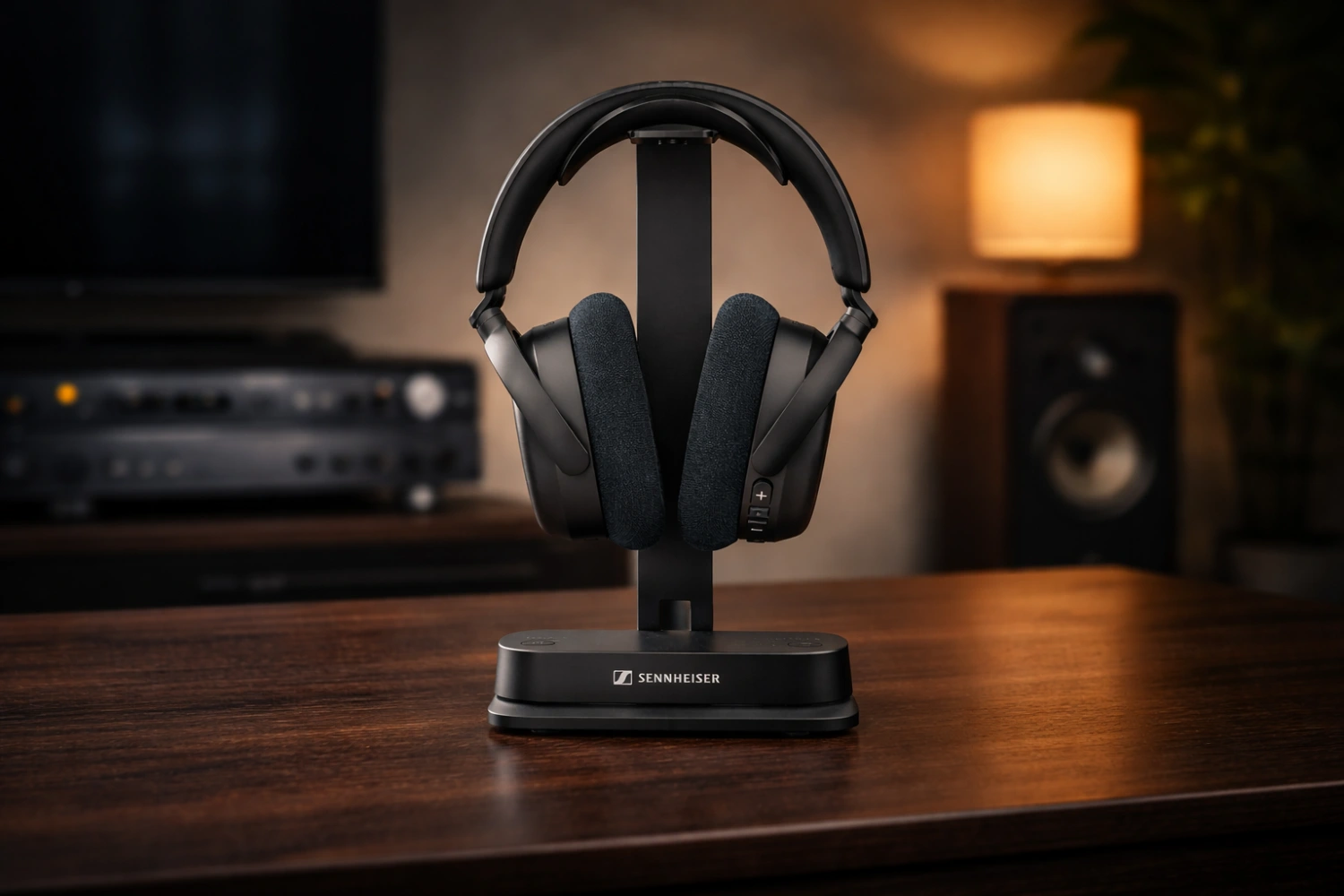
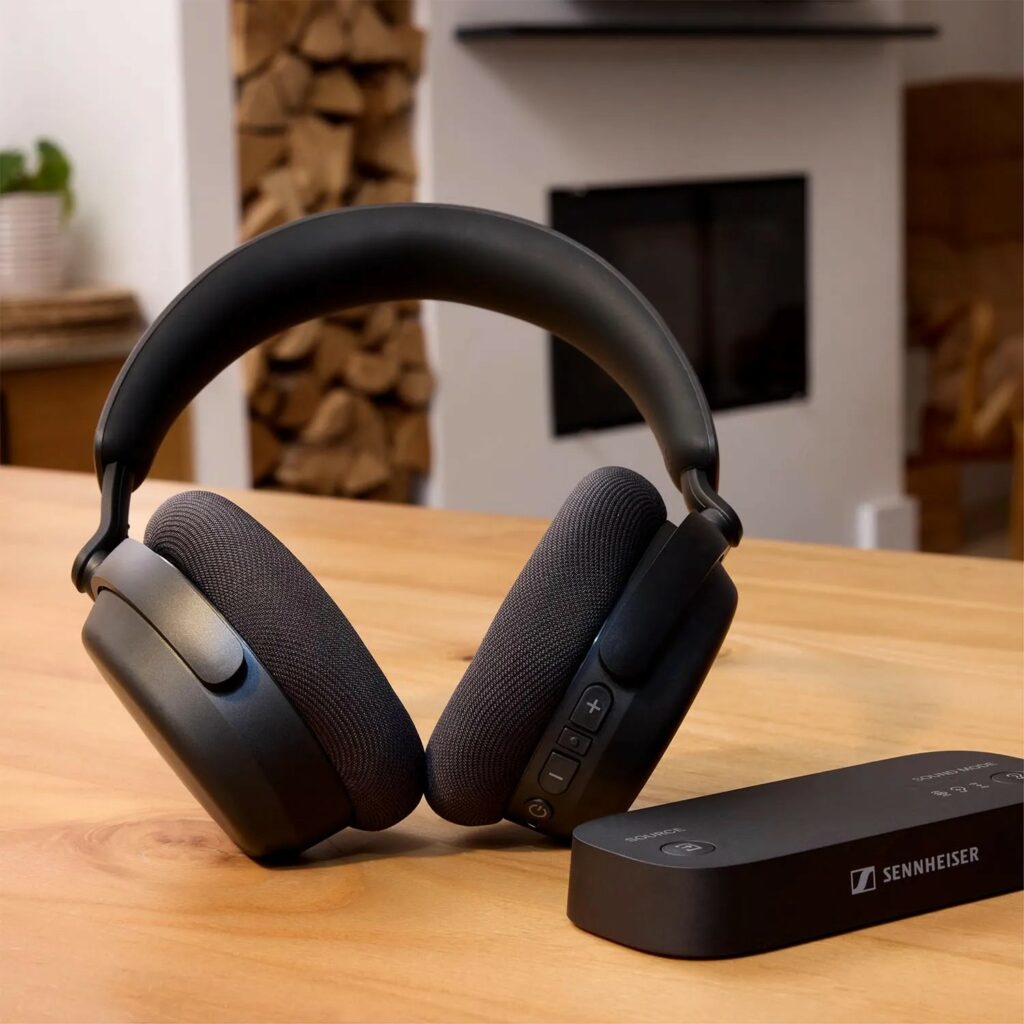
The Sennheiser RS 275 is a useful example of this category because it uses an included BTA1 transmitter and supports TV-friendly connections including optical, 3.5mm, and HDMI ARC.
It also includes speech clarity processing, volume normalization, and left/right balance adjustment.
Standard Bluetooth headphones can still work well if your TV supports Bluetooth audio, but the experience depends heavily on the TV, codec support, and headphone mode.
Some wireless earbuds and headphones support codecs such as SBC, AAC, LDAC, aptX, or aptX Adaptive, and some include a low-latency or gaming mode.
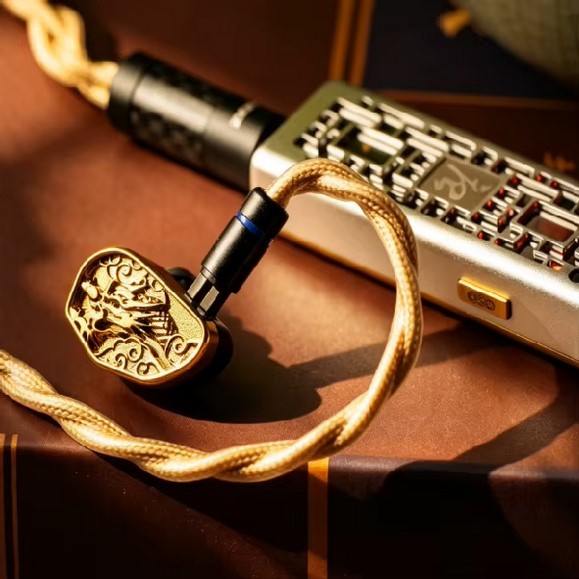
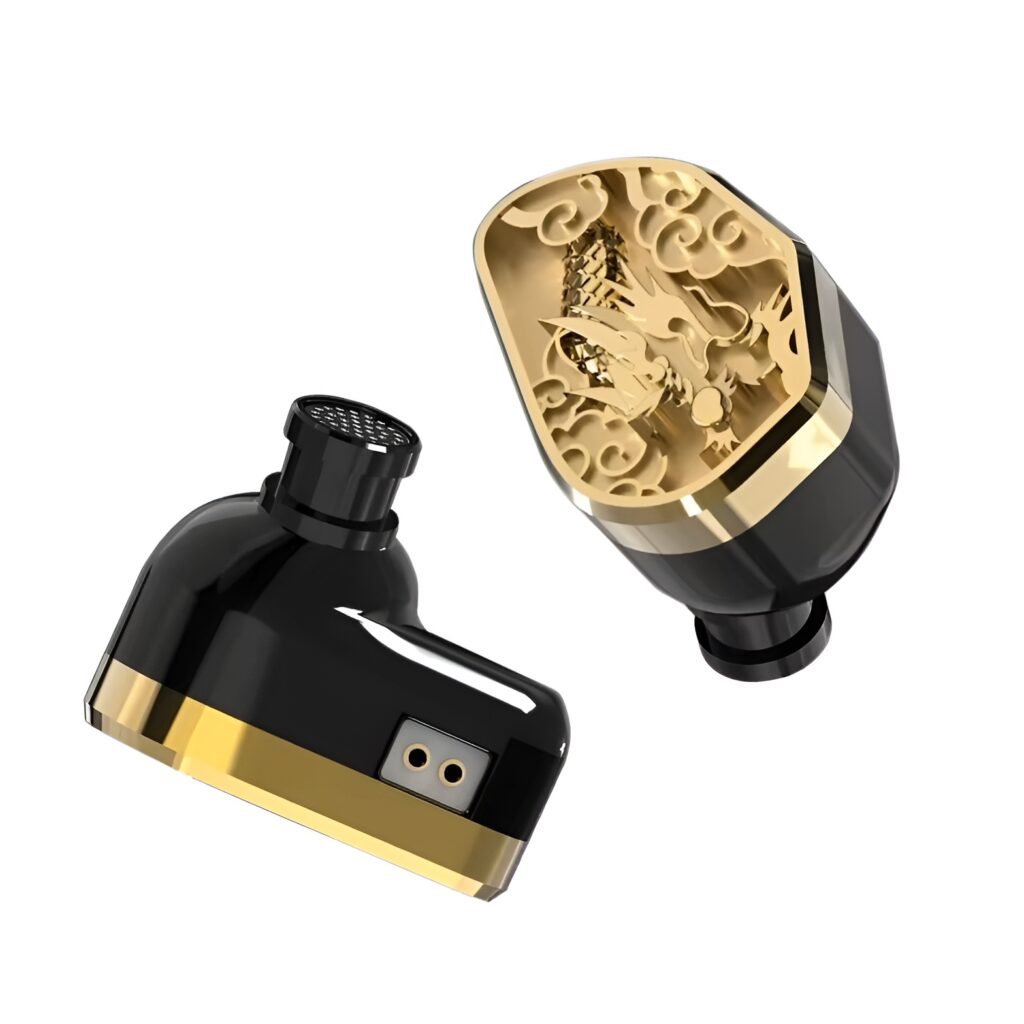
For example, KZ XTra Pro earbuds include LDAC, aptX Adaptive, AAC, SBC, and a gaming mode with advertised latency of about 55 ms. However, both the sending device and the headphones must support the relevant mode for it to matter. A TV that only sends basic Bluetooth audio may not take advantage of advanced headphone features.
- Decide whether the headphones are mainly for TV or for mixed phone/music use.
- If TV is the priority, favor a dedicated transmitter-based headphone system.
- If using ordinary Bluetooth headphones, check your TV’s Bluetooth audio menu and the headphone’s app or manual for low-latency mode options.
- Avoid assuming that a high-resolution music codec automatically means the best TV sync; dialogue timing and compatibility matter more for viewing.
### Choose the best TV connection: optical, HDMI ARC, or 3.5mm
The connection between the TV and transmitter affects convenience, volume behavior, and compatibility.
Many dedicated TV headphone transmitters provide more than one input so they can work with different televisions, consoles, and stereo systems.
The RS 275 transmitter, for example, includes optical, 3.5mm, and HDMI ARC inputs.
Optical is often the cleanest choice when you want headphones and TV speakers to behave separately.
In the RS 275 setup, using the optical input can allow headphone volume to be separated from the TV speakers, so the headphone listener can choose a comfortable level while others continue listening through the television or sound system.
This is one of the most important features for shared living rooms.
HDMI ARC can also be convenient because many modern TVs use ARC to send audio to external devices.
ARC stands for Audio Return Channel: it lets the TV send audio back through an HDMI connection to compatible equipment.
If your transmitter supports HDMI ARC, it can simplify wiring, but you should still check the TV’s audio output settings because ARC behavior varies by TV menu.
A 3.5mm analog connection is useful when a TV has a headphone jack or line output.
The limitation is that some televisions mute their internal speakers when a plug is inserted into the headphone jack.
That may be fine for private listening, but it is not ideal if one person wants headphones while others use speakers.
- Look at the back or side of your TV and identify optical, HDMI ARC, and 3.5mm outputs.
- If separate headphone and speaker volume is important, try the optical connection first when supported by your transmitter.
- Use HDMI ARC if your transmitter and TV support it and you prefer a single HDMI-based audio route.
- Use 3.5mm analog as a fallback, but test whether the TV speakers are muted when the cable is connected.
- After connecting the transmitter, open the TV audio menu and select the correct audio output if the TV does not switch automatically.
### Set up the transmitter and pair the headphones correctly
A dedicated wireless TV headphone system usually has three parts: the headphones, a transmitter, and a charging method.
Some systems include a charging stand, which is useful because it gives the headphones a consistent home and reduces the chance of starting a movie with an empty battery.
The RS 275, for example, includes a charging stand and uses USB-C charging.
Place the transmitter close enough to the TV for short, tidy cabling, but do not bury it behind metal objects or dense furniture.
Wireless performance can suffer if the transmitter is hidden in a cabinet or crowded by other electronics.
You do not need to place it in the center of the room; you simply want a clear, practical path between the transmitter and the listening position.
Pairing should be done before you fine-tune sound settings.
If the headphones and transmitter are supplied as a system, they may connect automatically after power-up.
If the system requires pairing, follow the headphone manual’s pairing sequence and wait until the transmitter indicates a stable connection.
- Charge the headphones fully before the first setup session.
- Connect the transmitter to the TV using your chosen cable: optical, HDMI ARC, or 3.5mm.
- Connect power to the transmitter or charging stand if required.
- Turn on the TV, transmitter, and headphones.
- Pair the headphones with the transmitter if they do not connect automatically.
- Play a familiar TV program with spoken dialogue and confirm that sound is coming through the headphones.
- Store the headphones on the stand or near the charger after use so they are ready for the next session.
### Configure TV audio settings for speech and sync
Clear dialogue starts with the source.
Many modern films and shows mix quiet speech with loud effects, so headphone volume alone may not solve the problem.
A useful TV headphone system can help by lifting voices or smoothing sudden level changes.
Speech clarity processing is designed to make voices more prominent in the mix.
On a TV headphone system such as the RS 275, Speech Clarity mode is intended to bring dialogue forward.
Speech Clarity Plus is available from the transmitter, while the companion app can provide deeper control. If voices are hard to follow, enable speech processing before you simply raise the volume.
Volume normalization is another useful tool.
Normalize Volume smooths out jumps between quiet scenes, loud action, and ads.
This is especially helpful for headphone listening because sudden loud passages can be more fatiguing when the drivers are close to your ears.
Lip-sync problems usually come from delay between video and audio.
Low-latency wireless transmission is important because even a small delay can make dialogue feel disconnected from the actor’s mouth.
If your headphones have a gaming or low-latency mode, try it for TV. If your TV has an audio delay or AV sync adjustment, use it carefully: the goal is to align speech with mouth movement, not to maximize any setting.
- Start with the TV’s audio output set to a simple, compatible format if your transmitter has trouble receiving sound.
- Enable speech clarity or dialogue enhancement on the headphone system if voices are recessed.
- Enable volume normalization if loud scenes or ads are uncomfortable.
- If lip-sync is off, try the headphone’s low-latency mode first, then adjust the TV’s audio delay or AV sync setting if available.
- Use a dialogue-heavy scene to confirm sync rather than music or background effects.
### Use separate volume control without disturbing other listeners
Separate volume is one of the main reasons to use wireless TV headphones.
In a shared room, one person may need clearer or louder dialogue while others prefer the TV speakers at a lower level.
The right connection and settings can prevent arguments over the remote.
When supported, optical connection is especially useful because it can keep headphone volume independent from TV speaker volume.
In a setup like the RS 275 using optical input, the headphone listener can adjust their own listening level without changing the speaker level for everyone else.
Headphones with easy physical volume controls are also helpful.
Some wireless headphones use small buttons or touch panels, while others use more tactile controls.
FiiO’s EH11, for instance, uses a rotary control on the earcup for volume. For TV, the exact design matters less than whether the listener can adjust volume confidently without looking away from the screen.
If your wireless headphones also connect to a phone, multipoint Bluetooth can be convenient.
Multipoint means the headphones can stay connected to more than one device.
On a TV headphone system, that may let you remain connected to a phone while watching TV, so you can take a call without fully reconfiguring the setup.
- Use the transmitter’s headphone volume control rather than the TV remote when separate listening is required.
- If the TV speakers change volume when you adjust the headphones, revisit the TV output setting or try optical if available.
- Set the TV speaker volume for the room first, then set headphone volume for the individual listener.
- Start each session at a moderate headphone level, especially after another user has worn the headphones.
- If using multipoint with a phone, test call behavior so incoming calls do not unexpectedly interrupt a shared viewing session.
### Improve dialogue with fit, earcup design, balance, and EQ
Headphone fit affects clarity.
Closed-back over-ear headphones can provide passive isolation, which means the earcups physically reduce some outside noise without using electronic noise cancellation.
This can help you hear dialogue without turning the volume up as much. The RS 275 uses a closed-back design with passive isolation and soft fabric cushions, making it suitable for long TV sessions.
Open or semi-open headphones can sound spacious and comfortable, but they do not isolate much.
FiiO’s EH11, for example, uses a semi-open design that allows more awareness of surroundings, but also provides minimal noise isolation and may leak sound at higher volumes.
That can be fine for casual listening, but it is less ideal when someone nearby is sleeping or when room noise makes dialogue harder to hear.
Left/right balance is important for listeners with different hearing sensitivity in each ear.
A balance control lets you make one side louder than the other so dialogue remains centered.
The RS 275 includes independent left/right balance adjustment, which is especially useful if voices seem to lean to one side.
EQ stands for equalization.
It adjusts parts of the sound spectrum, such as bass, mids, and treble.
For TV dialogue, avoid excessive bass boost if it makes voices muddy. If your headphone system offers profiles such as Warm, Detail, Clean, or Crisp, compare them using the same dialogue scene. The best setting is the one that makes speech intelligible at the lowest comfortable volume.
- Adjust the headband so both earcups seal evenly around your ears.
- Replace or reposition cushions if one side feels loose or leaks sound.
- Use left/right balance if centered voices do not appear centered to you.
- Try speech clarity before heavy EQ changes.
- If using EQ, make small changes and recheck dialogue, background music, and loud effects.
### Shared listening, Auracast, and multiple headphones
If more than one person wants private TV sound, look for a system that can broadcast audio to multiple compatible devices.
Auracast is a newer Bluetooth broadcast feature that allows one transmitter to send audio to multiple compatible receivers, such as headphones, earbuds, or hearing aids.
The RS 275’s BTA1 transmitter supports Auracast, making it a useful example of where TV headphone systems are heading.
Shared wireless listening is not only for late-night viewing.
It can help when two people need different listening levels, when a hearing-aid user wants direct TV audio, or when viewers want to watch without waking others.
The key compatibility point is that every receiving device must support the relevant broadcast method.
If your system does not support multi-device broadcast, do not assume that a second pair of ordinary Bluetooth headphones can connect at the same time.
Some TVs and transmitters support only one headphone connection.
Check this before buying extra headphones for shared listening.
- Check whether your transmitter supports multiple receivers or Auracast.
- Confirm that each headphone, earbud, or hearing device is compatible with the broadcast feature.
- Pair or join one device at a time according to the transmitter instructions.
- Set volume individually on each receiving device where supported.
- Keep a wired or speaker fallback available for guests whose devices are not compatible.
### Battery care, comfort, and safe listening habits
Wireless TV headphones are only useful if they are charged and comfortable.
A long battery rating reduces charging anxiety, but daily habits still matter.
The RS 275 is specified for up to 50 hours of playback and charges by USB-C in about two hours. FiiO’s EH11 is specified for up to 30 hours, while KZ XTra Pro earbuds are advertised for up to 8 hours from the earbuds and up to 40 hours total with the case. Real-world endurance depends on volume, modes, and usage, so build a routine rather than relying only on the rating.
Charging stands and cases are practical maintenance tools.
Put the headphones back in their normal charging place after each session.
Keep USB-C ports clean and avoid yanking cables at an angle. If the headphones can be used wired while charging, as with the RS 275, that can be a helpful fallback when you forget to charge.
Listening safety matters.
Because headphones place drivers close to your ears, very high volume can become fatiguing quickly.
Use speech clarity, balance, and normalization to improve intelligibility instead of simply raising the level. If you notice ringing, discomfort, or fatigue, reduce the volume and take a break.
- Create a fixed charging location near the TV.
- Wipe ear cushions occasionally with a dry, soft cloth and let them air out after long sessions.
- Do not store headphones under heavy objects or stretched over an unsuitable stand.
- Start each session at a lower volume, then raise gradually.
- Use dialogue enhancement and balance controls before increasing volume significantly.
### Troubleshooting wireless TV headphone problems
Most wireless TV headphone problems come down to output selection, unsupported audio format, weak pairing, low battery, or the wrong listening mode.
Work methodically and change one setting at a time.
If you hear no sound, confirm the TV is sending audio to the connected output.
Optical and HDMI ARC outputs may need to be enabled in the TV menu.
If you are using a 3.5mm jack, make sure the plug is fully inserted. If the transmitter has multiple inputs, confirm the correct input is selected.
If dialogue is unclear, do not immediately replace the headphones.
First check fit, enable speech clarity, try a cleaner or more detailed listening profile, and reduce excessive bass.
If only one ear sounds weaker, use balance adjustment if available and inspect the ear cushions for poor seal or damage.
If audio is delayed, switch off sound modes that add processing if your TV offers that option, try a low-latency or gaming mode on the headphones, and use the TV’s AV sync adjustment if available.
If your Bluetooth setup remains distracting, consider a transmitter-based TV headphone system designed for low-latency viewing.
If the connection drops, move the transmitter out from behind the TV cabinet, recharge the headphones, and remove unnecessary paired devices.
If a phone connection keeps interrupting TV audio, disable multipoint or disconnect the phone during viewing.
- No sound: check cable, TV output menu, transmitter input, headphone power, and pairing status.
- Low volume: raise headphone volume first, then check TV output level if using analog 3.5mm.
- Muffled speech: improve fit, enable speech clarity, reduce bass-heavy EQ, and try a clearer profile.
- Lip-sync delay: use low-latency mode and TV AV sync settings.
- Dropouts: improve transmitter placement, recharge batteries, and reduce competing connections.
- One-sided imbalance: check fit and cushions, then adjust left/right balance if supported.
Concise wireless TV headphone setup checklist
- Choose a dedicated TV headphone transmitter system if low latency and separate volume are priorities.
- Use optical first when you want headphone volume independent from TV speakers and your system supports it.
- Use HDMI ARC or 3.5mm only after checking how your TV handles speaker muting and volume control.
- Charge the headphones fully before setup and keep a fixed charging routine.
- Place the transmitter in the open, not buried behind metal objects or dense furniture.
- Enable speech clarity or dialogue enhancement for hard-to-hear voices.
- Use volume normalization to reduce sudden jumps between quiet scenes, action, and ads.
- Adjust left/right balance if voices do not sound centered.
- Use low-latency or gaming mode for TV if your headphones support it.
- Troubleshoot one variable at a time: cable, TV output, transmitter input, pairing, battery, then sound settings.
Common mistakes and how to avoid them
Buying music-focused Bluetooth headphones and expecting perfect TV sync automatically.
Check for TV-friendly features such as a dedicated transmitter, low-latency mode, and compatible TV outputs.
High-resolution codecs are useful for music, but TV viewing also needs timing compatibility.
Using the 3.5mm headphone jack without testing speaker behavior.
Some TVs mute their speakers when a headphone plug is inserted.
If other people need to hear the TV speakers, try optical or another supported output instead.
Turning volume up instead of improving speech clarity.
Enable speech clarity, use a clearer listening profile, adjust balance, and improve fit before raising volume.
This often improves intelligibility with less listening fatigue.
Hiding the transmitter inside a cabinet.
Place the transmitter where it has a practical wireless path to the listening position.
Keep cables tidy, but do not sacrifice signal reliability for invisibility.
Ignoring left/right hearing differences.
Use independent balance adjustment if available.
A small balance correction can make centered dialogue easier to follow.
Forgetting battery maintenance.
Return headphones to the charging stand or case after each session.
Keep USB-C ports and cushions clean, and avoid starting long viewing sessions with a low battery.
Frequently asked questions
Can I use any Bluetooth headphones with my TV?
Only if your TV supports Bluetooth audio or you add a compatible transmitter.
Even then, lip-sync performance depends on the TV, transmitter, codec, and headphone mode.
For the most predictable TV experience, a dedicated wireless TV headphone system is often easier to configure.
What connection should I use for separate headphone and TV speaker volume?
Use optical when your TV and transmitter support it.
In a system such as the Sennheiser RS 275, optical input can allow headphone volume to remain separate from the TV speakers, which is ideal for shared rooms.
Why is dialogue still hard to understand through headphones?
The issue may be the mix, the fit, or the sound settings.
Enable speech clarity, try volume normalization, check the earcup seal, reduce overly bass-heavy EQ, and use left/right balance if voices do not sound centered.
How do I fix audio that is out of sync with the picture?
Try the headphone’s low-latency or gaming mode if available, then check the TV’s AV sync or audio delay setting.
If ordinary Bluetooth remains distracting, consider a transmitter-based TV headphone system designed for low-latency use.
Can two people listen with wireless headphones at the same time?
Yes, but only with compatible equipment.
A transmitter with Auracast support can broadcast to multiple compatible devices, including headphones, earbuds, or hearing aids.
Without a multi-device feature, many TVs or transmitters may support only one headphone connection.
Are closed-back or open-back headphones better for TV?
Closed-back headphones are usually more practical for TV because they provide passive isolation and reduce sound leakage.
Open or semi-open designs can feel airy and comfortable, but they isolate less and may leak sound at higher volumes.
Conclusion: build the TV headphone setup around clarity, timing, and control
The best wireless TV headphone setup is not just the loudest one.
Start with the right connection, preferably optical when separate headphone and speaker volume is important.
Use a dedicated transmitter-based system when low latency, reliable pairing, and TV-specific controls matter. Then fine-tune speech clarity, normalization, balance, fit, and EQ so dialogue becomes easier to understand at a safe, comfortable volume. Keep the transmitter well placed, maintain a charging routine, and troubleshoot methodically if sound, sync, or connection problems appear. With the right setup, wireless TV headphones can make late-night viewing, shared rooms, and dialogue-heavy programs far more enjoyable without disturbing anyone else.



Join the discussion
Share your thoughts, listening impressions or product experience.