Windows 11 is positioned less as a radical break from Windows 10 and more as a carefully modernized version of Microsoft’s long-running desktop platform. That makes its appeal fairly practical: it aims to make familiar PC tasks feel cleaner, more organized, and better connected across work, browsing, communication, and gaming. For anyone whose computer sits at the center of daily productivity, entertainment, or a mixed-use desktop setup, the most interesting parts of Windows 11 are not abstract design changes, but the ways Microsoft has tried to reduce friction in common routines. A free update path for compatible Windows 10 computers also makes the transition important for existing users, while new computers arriving with Windows 11 pre-installed give the platform a clear role in the next generation of mainstream PCs.
A more modern interface without abandoning familiarity
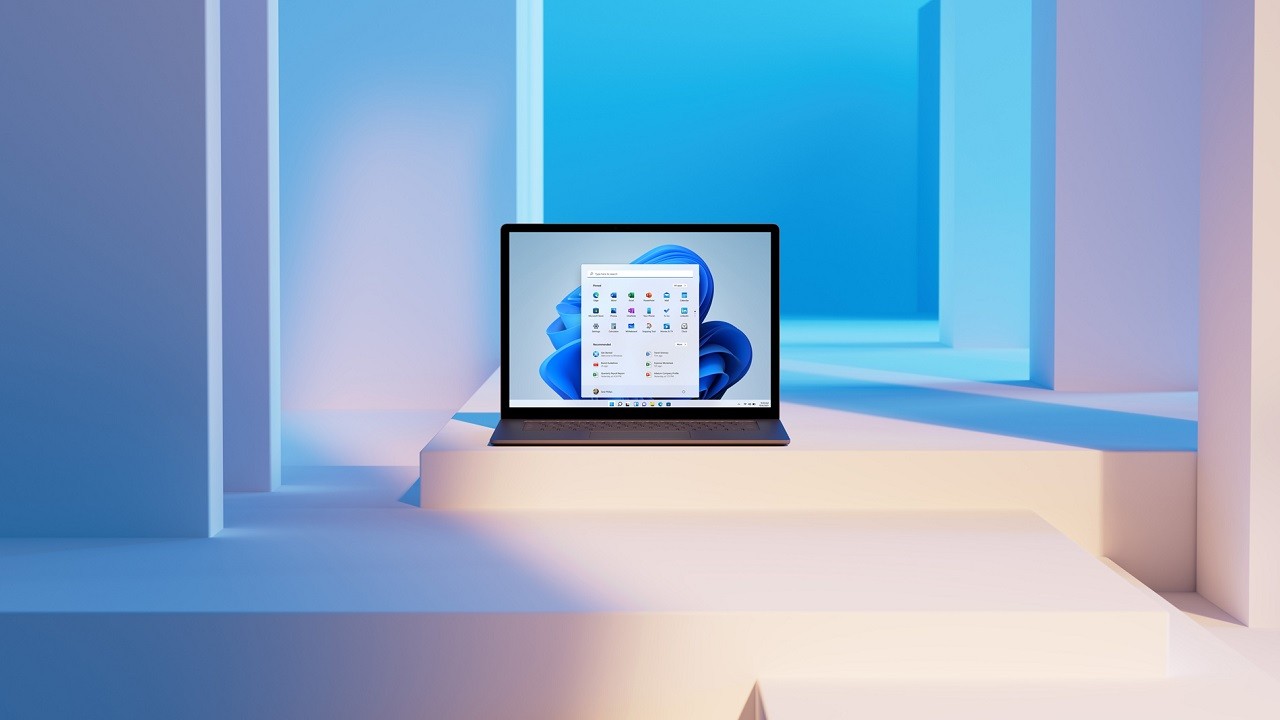
One of the defining design choices in Windows 11 is its cleaner, fresher interface. Microsoft has not presented it as a complete reinvention of the operating system, and that restraint is part of its usefulness. Long-time Windows users are not being asked to learn an entirely unfamiliar environment, but they are given a desktop that is intended to look more contemporary and less visually busy.
The central positioning of contents is a visible example of that approach. A centered layout can make the desktop feel more balanced, especially on modern widescreen monitors where older left-weighted interface habits can seem less natural. For users working across multiple windows, documents, browser tabs, and communication tools, a cleaner visual structure may help the operating system feel more orderly without requiring a change in the underlying way they use a PC.
The Start button also takes on a more connected role. By using cloud services and Microsoft 365 to display recent files, including files opened on other devices, Windows 11 reflects the reality that many users no longer work on just one machine. A document might begin on a laptop, be checked on another device, and then be continued on a desktop. Bringing those recent files into the Start experience is a practical design decision because it treats continuity as part of the operating system rather than as a separate task for the user to manage manually.
Multitasking tools designed for real desktop work
Windows has always been associated with multitasking, but Windows 11 places specific emphasis on making multitasking more manageable. Snap Layouts, Snap Groups, and virtual desktops are designed to give users more freedom to organize screen space. These are not cosmetic features; they address the everyday problem of how to keep several tasks visible, accessible, and separated without turning the desktop into a cluttered stack of overlapping windows.
Snap Layouts can be especially relevant on larger displays, where simply maximizing one application wastes the potential of the screen. A user might want a browser, a document, a messaging window, and a reference page arranged in a stable pattern. Snap Groups then support the idea that a set of windows can belong together as a working arrangement, rather than as isolated applications that must be found and restored one by one.
Virtual desktops add another layer of organization. They are useful for separating different contexts: work on one desktop, personal browsing on another, and perhaps entertainment or gaming-related tools elsewhere. The benefit is not just having more space; it is having mental boundaries inside one computer. For people who use a single PC throughout the day, this kind of separation can make the system feel less chaotic.
Communication built into the taskbar
Windows 11 also integrates Microsoft Teams chat into the taskbar. This is a notable decision because communication has become a standard part of the desktop experience rather than a separate activity. Many users move constantly between documents, web pages, meetings, and messaging, and placing Teams chat in the taskbar is intended to make those transitions easier.
For work environments, the value is straightforward: communication is closer to the main interface. Instead of treating chat as a window that must be located among other windows, Windows 11 makes it part of the operating system’s daily access layer. This does not make the PC more powerful in a technical sense, but it may make common workflows feel more direct, particularly for users already relying on Microsoft’s productivity ecosystem.
Widgets, Edge, and faster access to information
The widgets section in Windows 11 is described as using artificial intelligence to gather relevant information for the user. The appeal here is convenience. A modern desktop operating system is no longer only a place where applications are launched; it is also a dashboard for information. When implemented well, a widgets area can reduce the number of times a user opens a browser or separate app just to check frequently needed updates.
Microsoft Edge is also presented as offering a notable improvement in agility when accessing websites. Web browsing is central to almost every PC use case, from reading and research to streaming, shopping, banking, and managing services. An operating system that treats the browser as a core experience rather than an accessory is responding to how people actually use computers today. While Windows 11 does not require users to change every habit, its emphasis on browsing agility highlights the importance of web performance in the overall feel of a modern PC.
A stronger platform for PC gaming features
Windows 11 places special attention on gamers, with native support for DirectX 12 Ultimate, DirectStorage, and Auto HDR. These technologies are significant because gaming on a PC is not only about the operating system’s appearance; it depends on the platform’s ability to support modern graphics, storage, and display-related capabilities. By building support for these technologies into Windows 11, Microsoft is signaling that gaming is a core part of the platform rather than a secondary use case.
The presence of the Xbox Game Pass subscription app from the first day also matters for usability. It puts Microsoft’s game-subscription ecosystem close to the operating system experience and reduces the distance between owning a PC and accessing a library-oriented gaming service. For users who split their time between productivity and gaming, Windows 11 is designed to serve both roles from the same desktop environment.
This gaming focus can also be relevant to buyers of new computers. A machine arriving with Windows 11 pre-installed is positioned not only as a general-purpose PC, but as one ready to participate in Microsoft’s current gaming direction. As always, the actual experience will depend on the hardware in the computer, but the documented operating-system support gives the platform a clear gaming orientation.
A redesigned Microsoft Store and future Android app support
The Microsoft Store has been redesigned with the aim of simplifying search and content discovery. That may sound modest, but app discovery is a real part of platform quality. If users cannot easily find, understand, and install software, the operating system feels more fragmented. A clearer store experience can make Windows 11 more approachable for users who want a simpler path to applications and content.
Another important development is the promised future support for Android applications on Windows 11 through collaboration with Amazon and Intel. This points to a broader idea of what a Windows PC can run and how it can fit into a user’s existing app habits. The source material frames this as future support, so it should be understood as part of Microsoft’s platform direction rather than a reason to assume every Android app experience is immediately available in all situations. Still, the intent is distinctive: Windows 11 is designed to become more flexible in the kinds of applications it can accommodate.

Rollout, compatibility, and the importance of a gradual update
Windows 11 was announced for public launch from October 5, 2021, with Microsoft beginning a gradual deployment process through a free update for Windows 10 computers that meet the minimum requirements. The gradual nature of the rollout is important. Operating-system upgrades affect core parts of a computer, and a staged deployment gives the platform a more controlled path to compatible machines rather than treating every PC as identical.
Compatibility is therefore central to the Windows 11 story. The update is not simply a download for every existing Windows 10 computer regardless of condition or specification; it is tied to minimum necessary requirements. For prospective users, that makes checking compatibility part of the ownership experience. For buyers choosing a new computer, the arrival of Windows 11 pre-installed on later models removes that question and makes the new operating system the starting point rather than an upgrade decision.
Conclusion
Windows 11 is most suitable for users who want a familiar Windows foundation with a cleaner interface, better-organized multitasking, closer Microsoft 365 and Teams integration, modern gaming-technology support, and a more streamlined route to apps and information. It is not presented as a total reinvention of Windows, and that is part of its appeal: the strongest documented qualities are practical improvements to layout, continuity, communication, gaming readiness, and content discovery. Owners of compatible Windows 10 PCs may see it as a measured update, while buyers of new computers will encounter it as Microsoft’s modern default PC environment.