
Today we will prepare a guide to adjust the picture of LG OLED 2022 TV with the best possible settings. When we buy a new TV, the same thing always happens. The rush makes you tune the TV as you like. We even forget to check the state of the matrix and make the mistake of leaving the default TV picture mode (usually Standard).
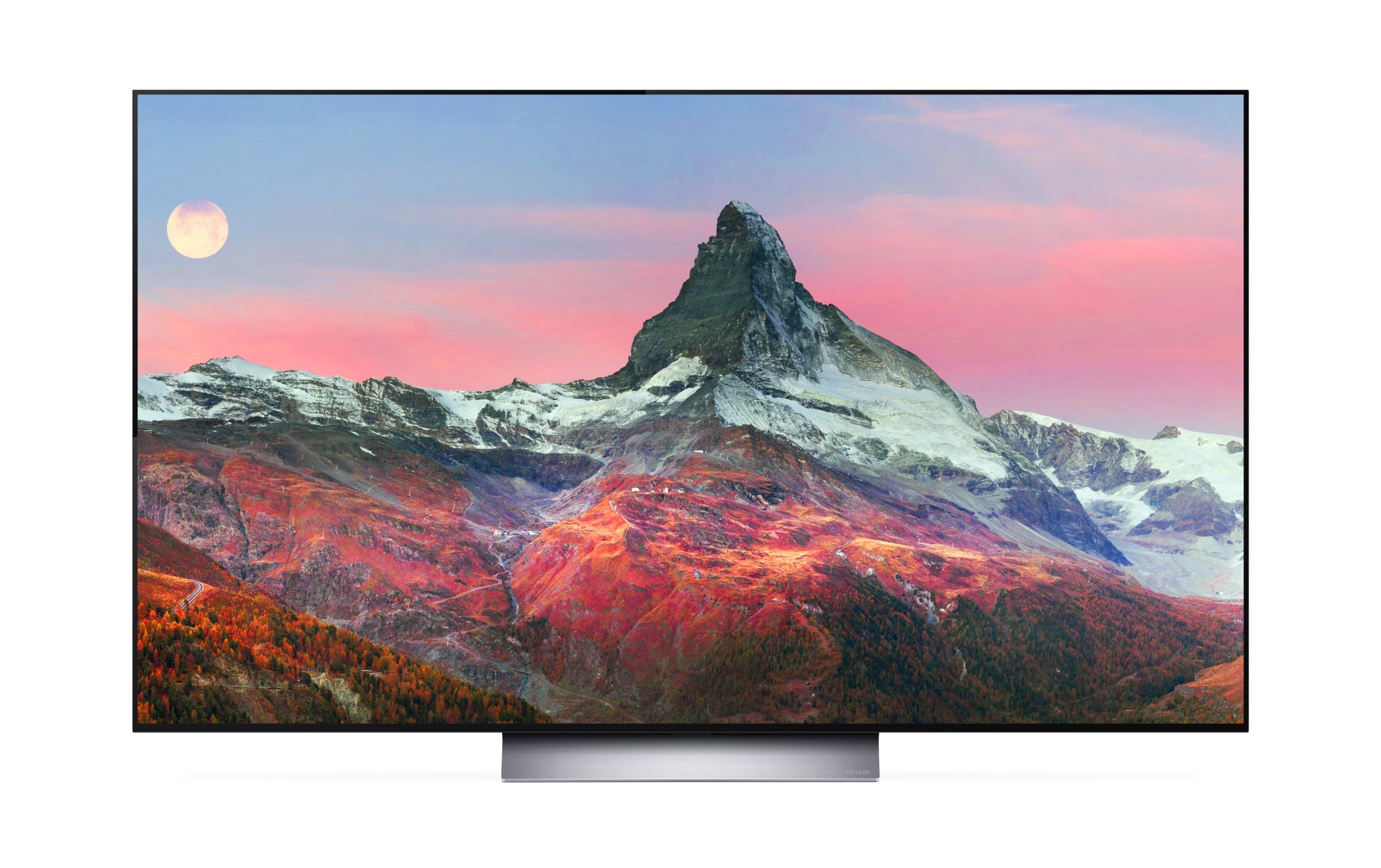
But we recommend taking a little time to set it up in an optimal way. To help you get the best LG OLED settings ( A2 , B2 , C2 and G2 ) for your preference, we’ll start with the factory settings. And then we will modify each of them to taste, adding here, removing there, raising one or another value a little, but always keeping them within “reasonable” limits.
Samsung Neo QLED TV Comparison 2021: The main differences between the models
LG OLED TV settings (calibration)
Picture Mode Options
With these settings, we’ll walk through what each setting does in turn. We then summarize the best settings and picture modes for each type of content (SDR, HDR, DVB, consoles, PC, etc.) in the table you will find at the end of the article. To go to the described parameters, select the desired image mode, and then “Advanced settings”.
In addition to mode selection and basic image settings, LG webOS 22 offers options to turn on director’s mode and reduce blue (select a warmer color temperature). When FILMMAKER MODE is set to “On”, the LG OLED TV will automatically detect when cinema content (movies and series) is being broadcast and automatically switch to this picture mode.
In the advanced settings of the LG OLED 2022 TV, we will find three sections: Brightness, Color and Sharpness. Let’s start with a group of parameters related to brightness:
OLED Pixel Brightness : controls the amount of light emitted by the panel.
Contrast Adjustment : Responsible for adjusting the difference in glow between the darkest and
lightest areas of the screen, affecting the white color.
Panel Brightness : Responsible for adjusting the brightness that affects blacks.
Auto Dynamic Contrast : Applies a contrast optimization algorithm
based on the brightness of the image to provide a more contrasty feel. In HDR mode
On 2017 OLED displays, enable Active HDR (dynamic metadata generator).
Dynamic Tone Processing (appears only in HDR): Adjusts the brightness of HDR content
according to the panel’s maximum light output by dynamically changing the PQ EOTF curve.
Peak Luminance : Allows you to increase the brightness of the white sub-pixel.
Gamma (brightness control) : this option allows us to switch between different
gamuts: BT.1886 (equivalent in OLED to 2.4), 2.2, 2.4 and S.
Video range : allows us to switch between HDMI video range (16-235) and
PC / consoles (0–255).
Eye Protection : Applies a warmer color temperature to the image.
After experimenting with the adjustments and catching our breath, we move forward. Next in line is the Chromaticity section: Color
Depth : controls the overall color saturation of the panel. It is recommended not to abuse.
Tint : Allows you to correct the phase error between the sender and receiver of the NTSC signal. It is recommended not to touch.
Color Temperature : Shifts the set of colors towards a colder or warmer image (in other words, more bluish or more yellowish).
Color gamut : allows us to switch between different color ranges (Rec.601, Rec.709 and BT.202), including automatically.
Color adjustment : allows us to change the saturation and brightness of the colors (only used with a sensor).
White balance : allows us to change the color temperature in steps of 1, as well as 22 gamma points.
What’s the difference between LG C2 and LG G2
And to finish, let’s go back and go to the last section Clarity: Clarity
Adjustment : applies an unsharp mask to simulate sharpening. It is recommended not to abuse.
Super Resolution : Applies an unsharp mask and various haze suppressors. Not recommended for use.
Noise Reduction : Removes digital noise from an image at the cost of losing fine detail.
MPEG Noise Reduction : Removes the noise that occurs when an image is compressed due to the loss of fine details.
Smooth Gradation : Applies deinterlacing to improve color gradations, it is recommended not to go below a low value.
Real cinema: In 24p sources and when switching to the player, the TV will output at 120Hz (Pulldown 5:5) repeating the same frame 5 times. Highly recommended.
TruMotion : An interpolator that calculates artificial frames to add smoothness to moving objects. But the higher, for example, the value of De-Judder, the more artifacts it will create when reducing jitter. It is recommended to deactivate it or activate it with low values (eg 3 De-Judder, 0 De-Blur). The OLED Motion Pro option, which alternates black frames between each frame, increases the smoothness of motion but reduces the brightness.
Looking for a bargain? Check out the 8 best TVs of 2021
Best settings for LG OLED
And that concludes our explanation of what each option does. Now we should take stock, that is, figure out which options to activate and which not, and what value to assign to each of them, depending on the content that we see on the screen. As we said at the beginning of the article, take this as a basis from which you can customize the LG screen to your liking.
In HDR and SDR modes, the parameters are set closest to the reference image calibrated with the sensor. The values for DVB (Digital TV) can be ignored as you can set the values you like best here. We have left you a few recommended ones, but they can be changed. For greater convenience, we have reduced the sets of parameter values into three tables – for SDR and TV content, for HDR and for games.
Summary
With these simple steps, you can tune your TV accurately enough without resorting to professional probes and spectrometers. But at least you’ll be using a fairly proper base. To achieve higher accuracy, it is necessary to hire a professional calibration service using colorimetric sensors.